Please follow the steps below:
- Open the Terminal.
- Type:
nano ~/.zshrc - Type:
export PATH=[PATH_TO_FLUTTER_GIT_DIRECTORY]/flutter/bin:$PATH

- Press
control+xto Exit - Type:
source ~/.zshrc - Restart the Terminal.
- Verify by typing
flutter --version

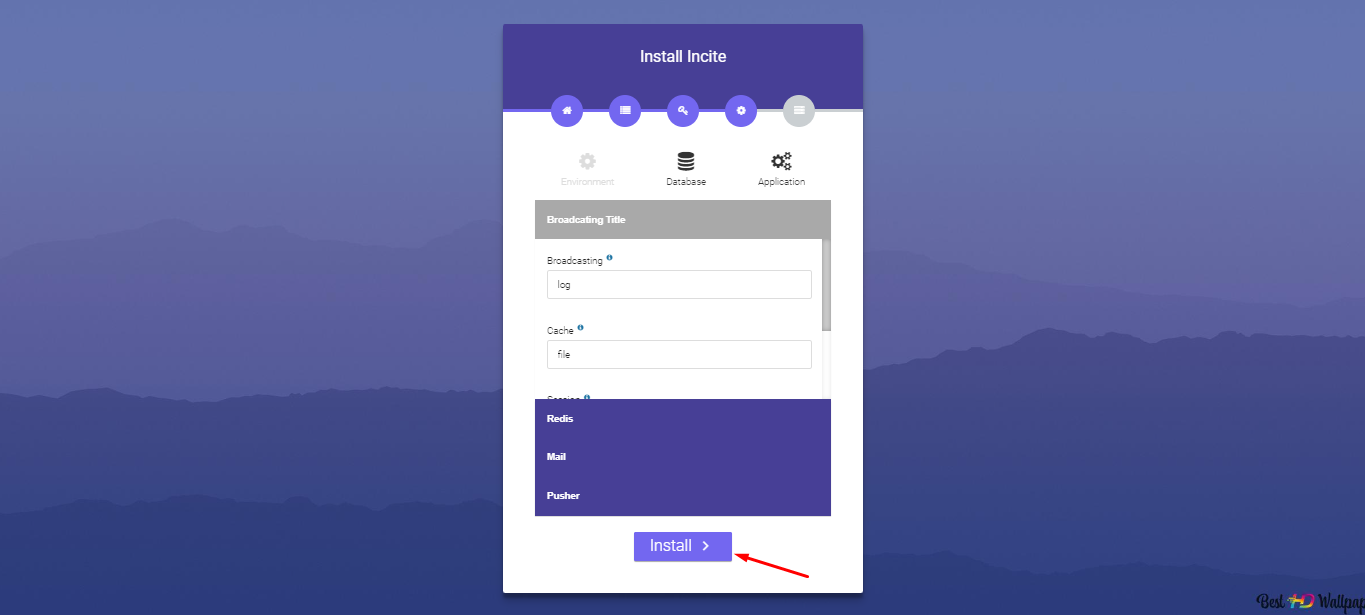
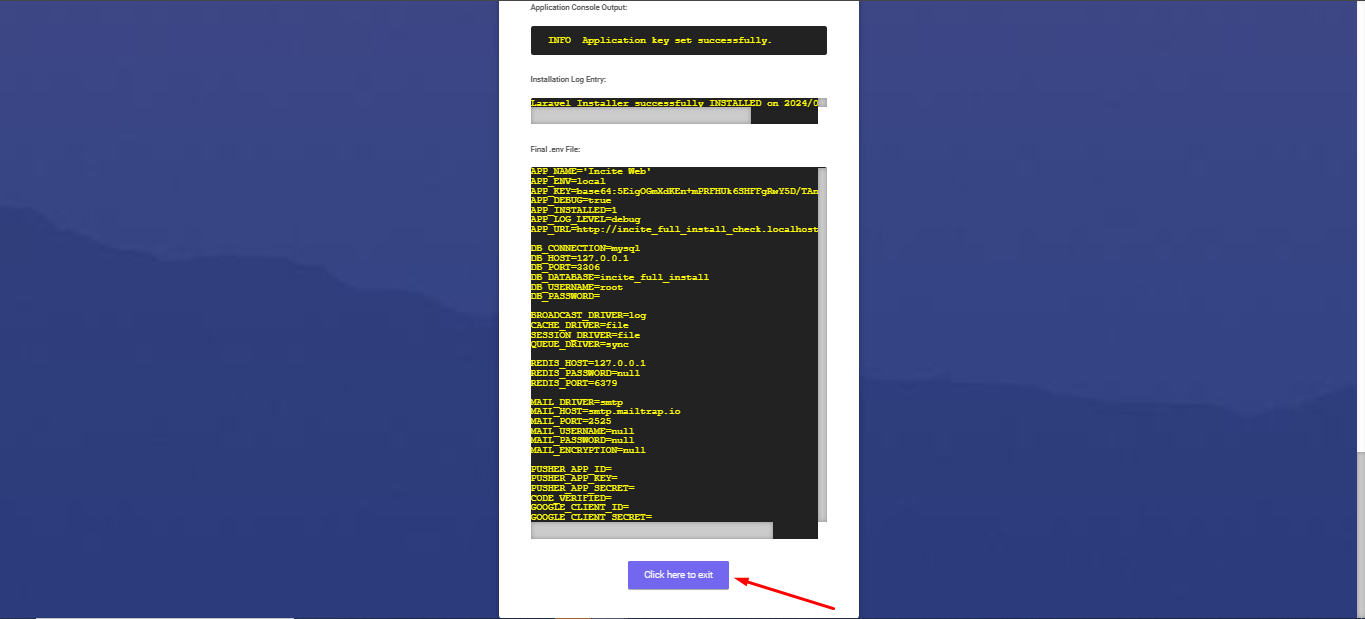
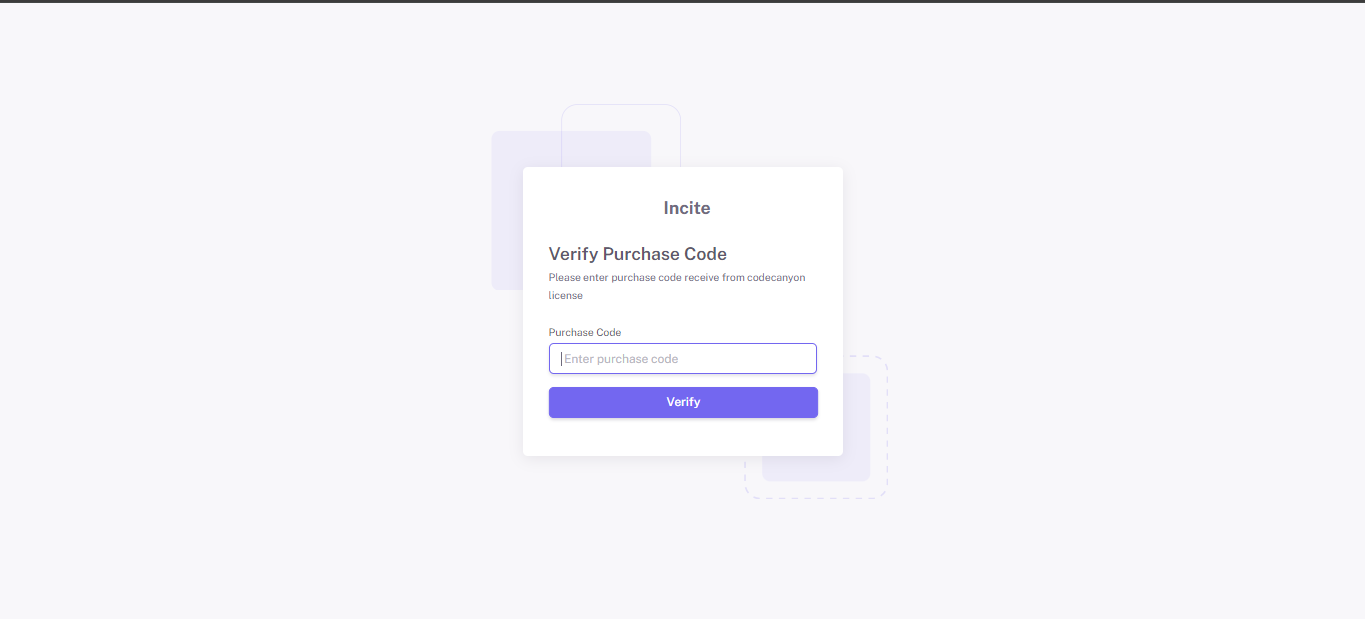
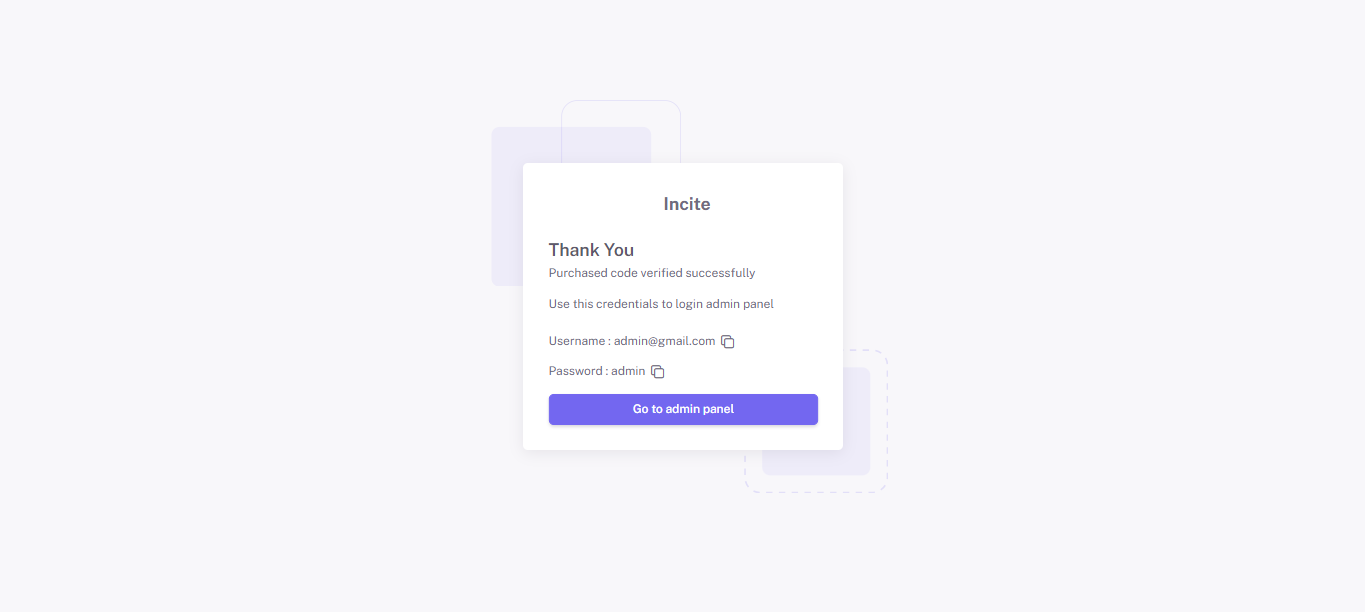
Flutter version : 3.5.0 <= 4.0.0 | Dart version : 3.2.3
Please make sure you have Visual Studio Code DOWNLOAD VS Code
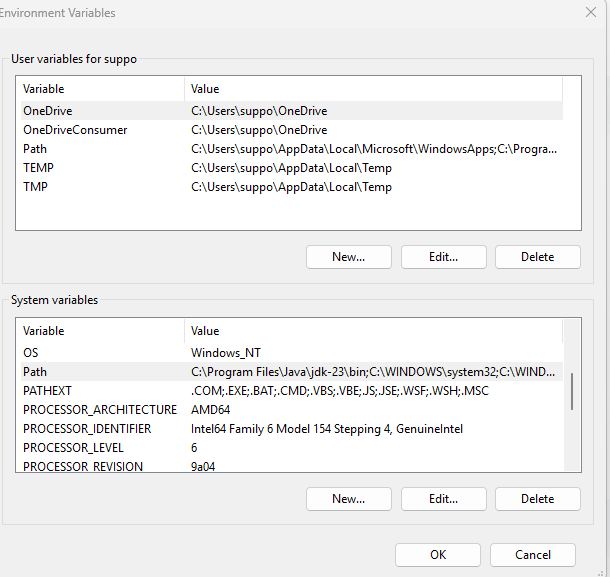
Please follow the steps below:
nano ~/.zshrcexport PATH=[PATH_TO_FLUTTER_GIT_DIRECTORY]/flutter/bin:$PATHcontrol+x to Exitsource ~/.zshrcflutter --version
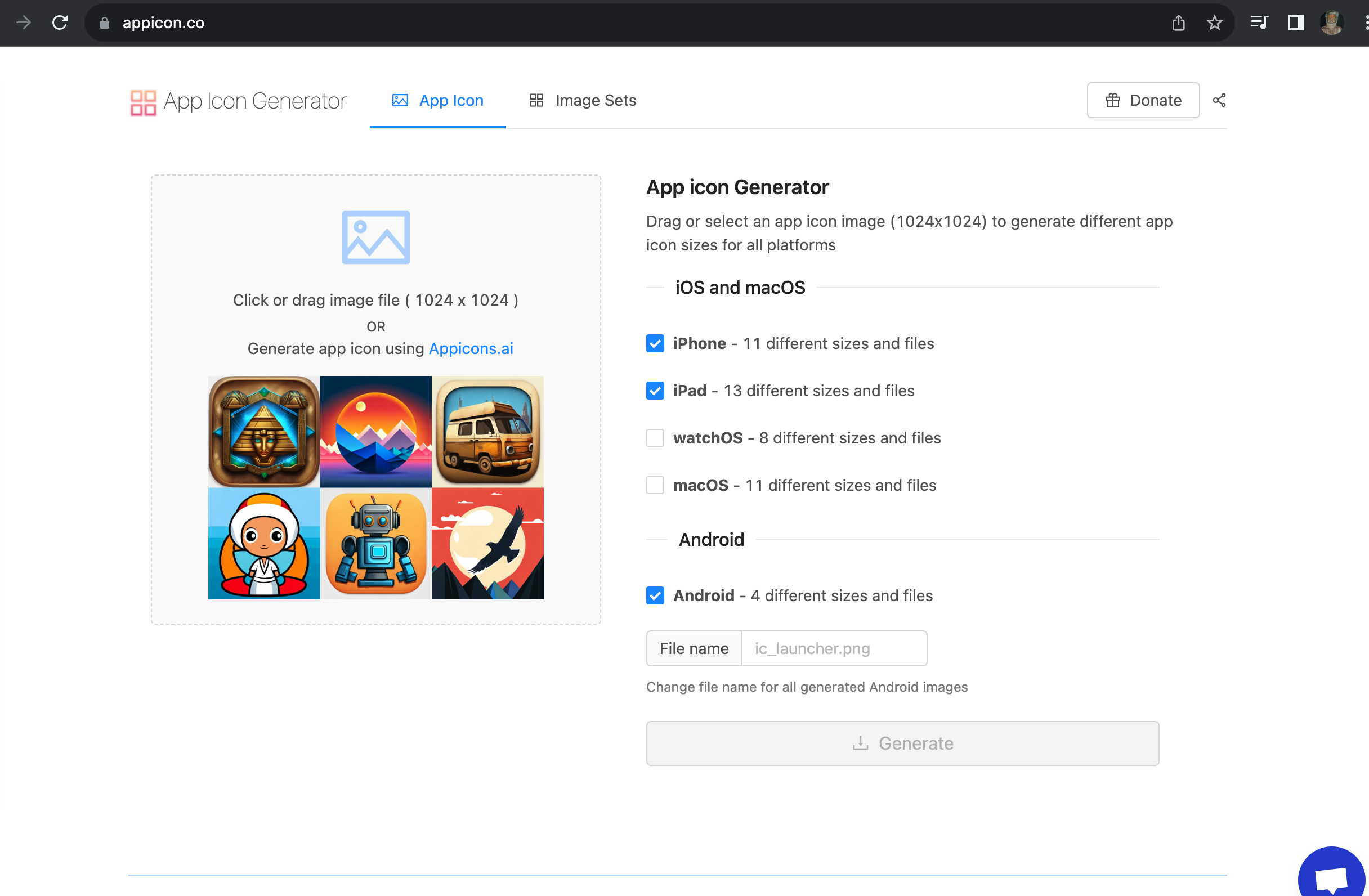
Open your project, and go to 'android/app/src/main/res/' file inside your project
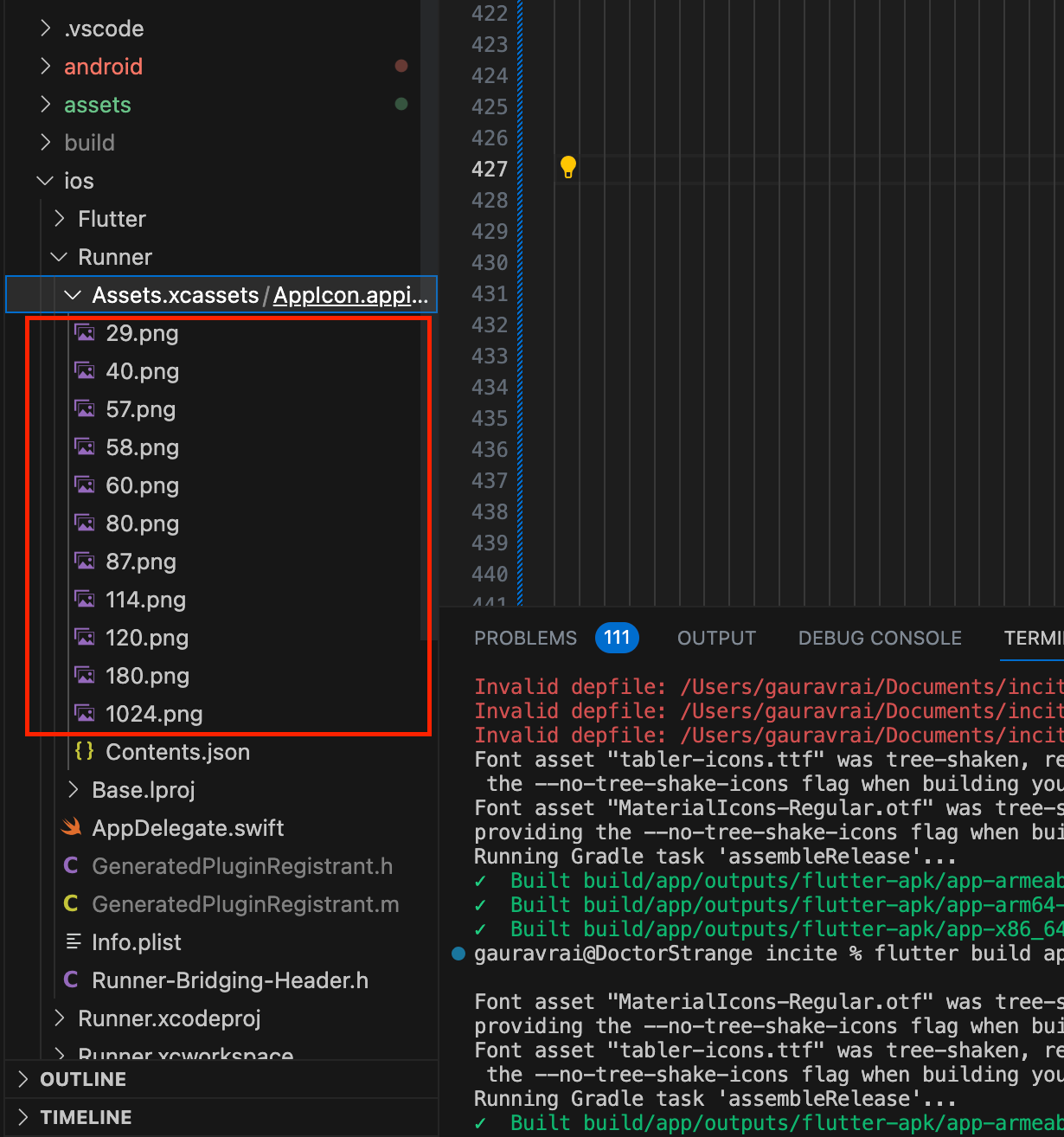

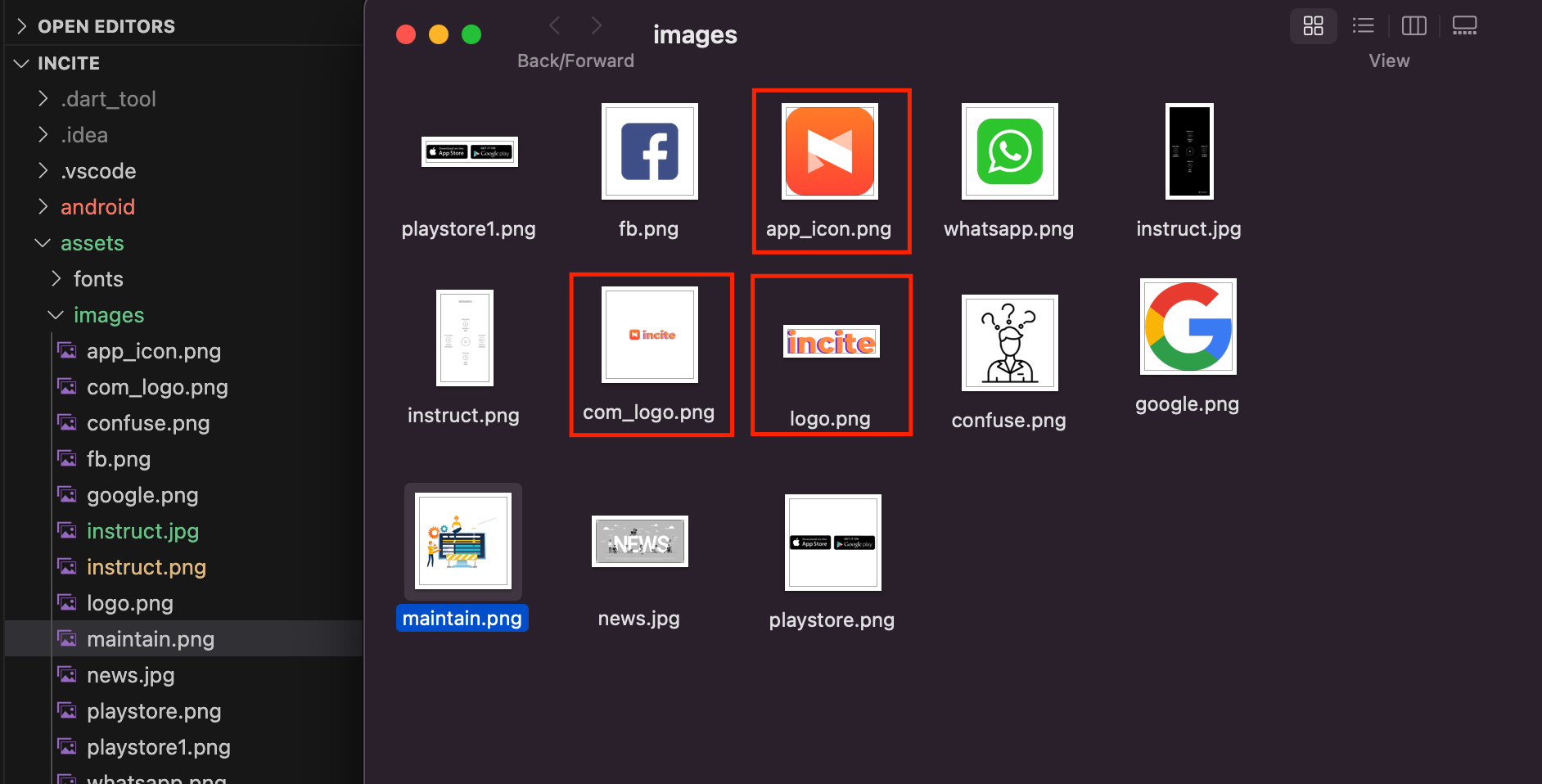
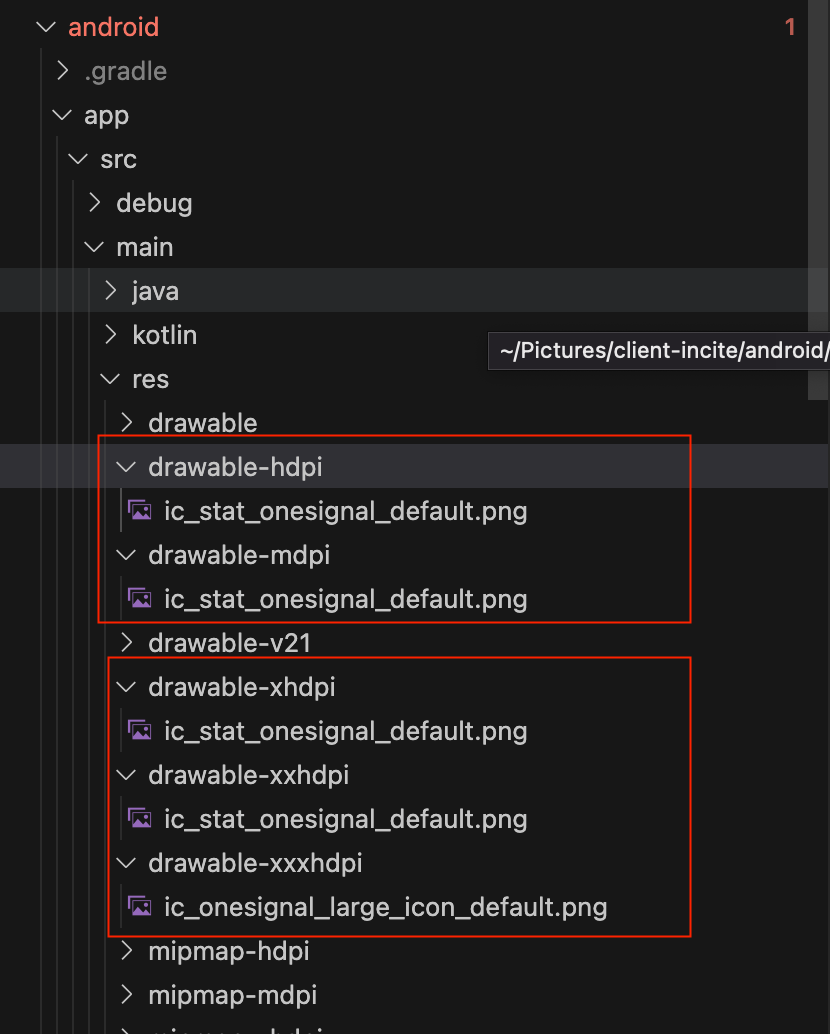
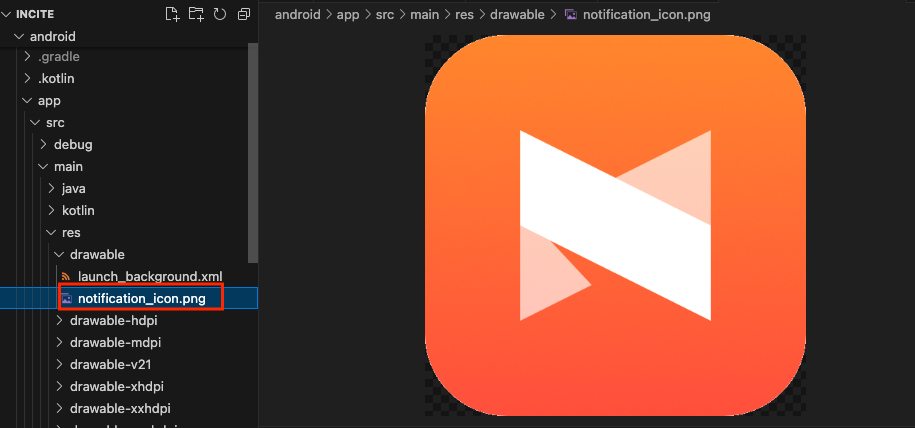
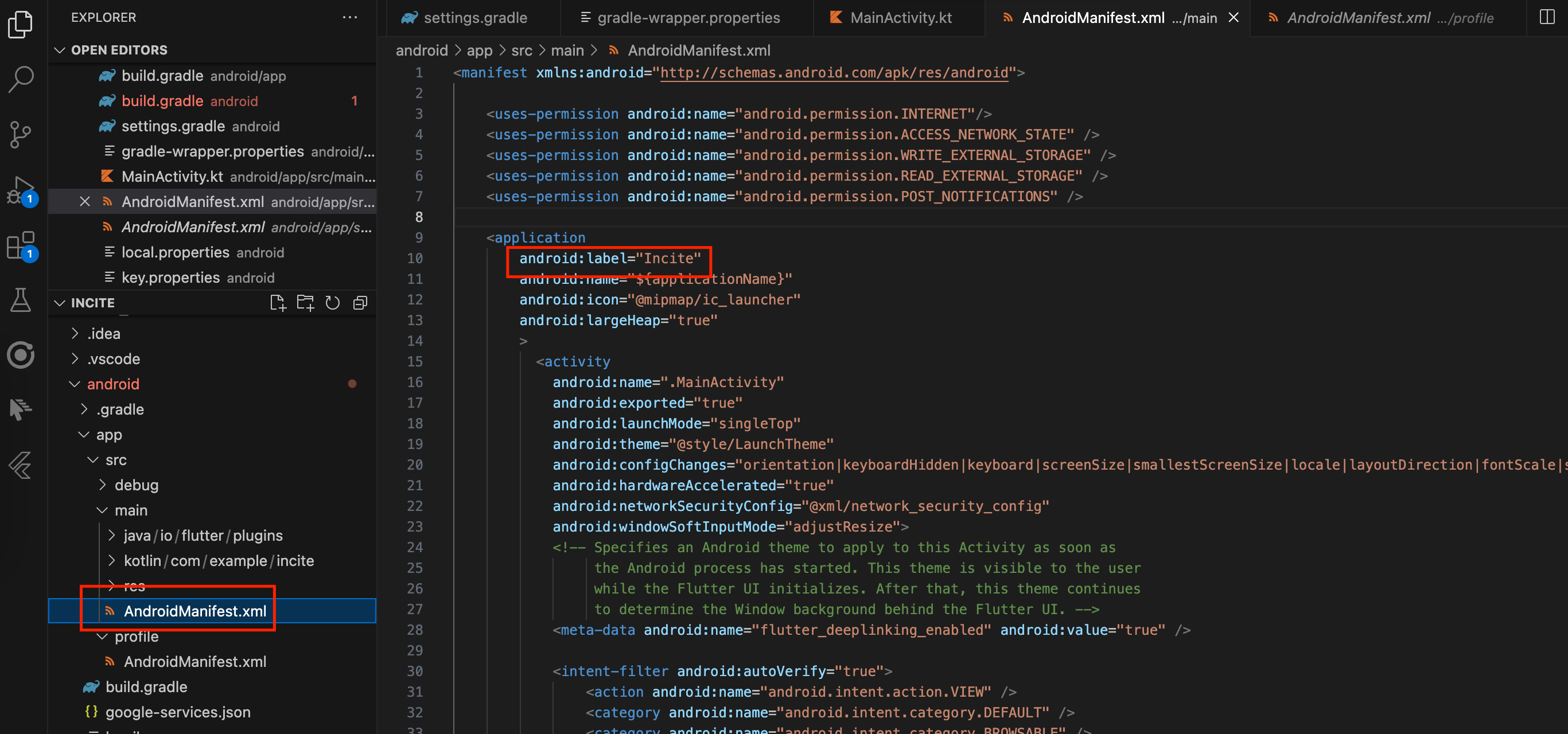
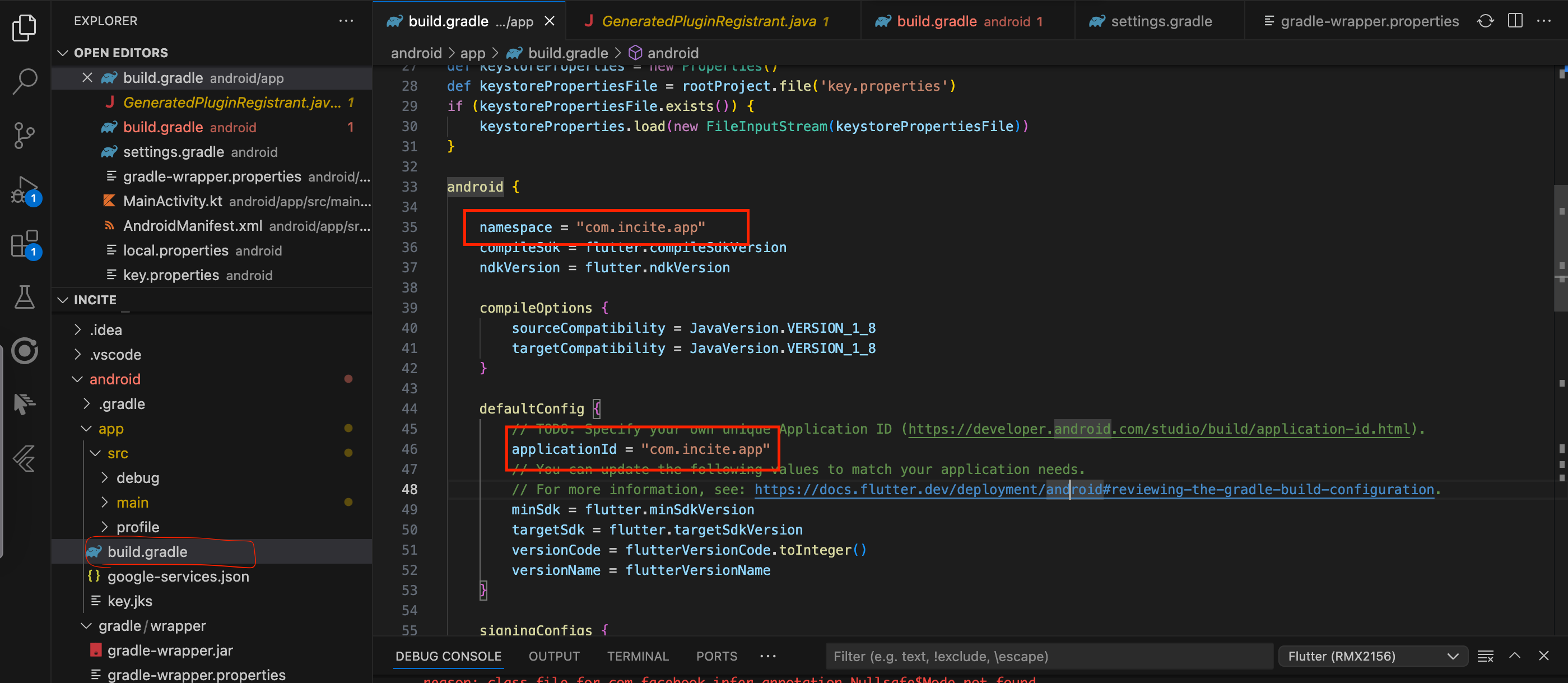
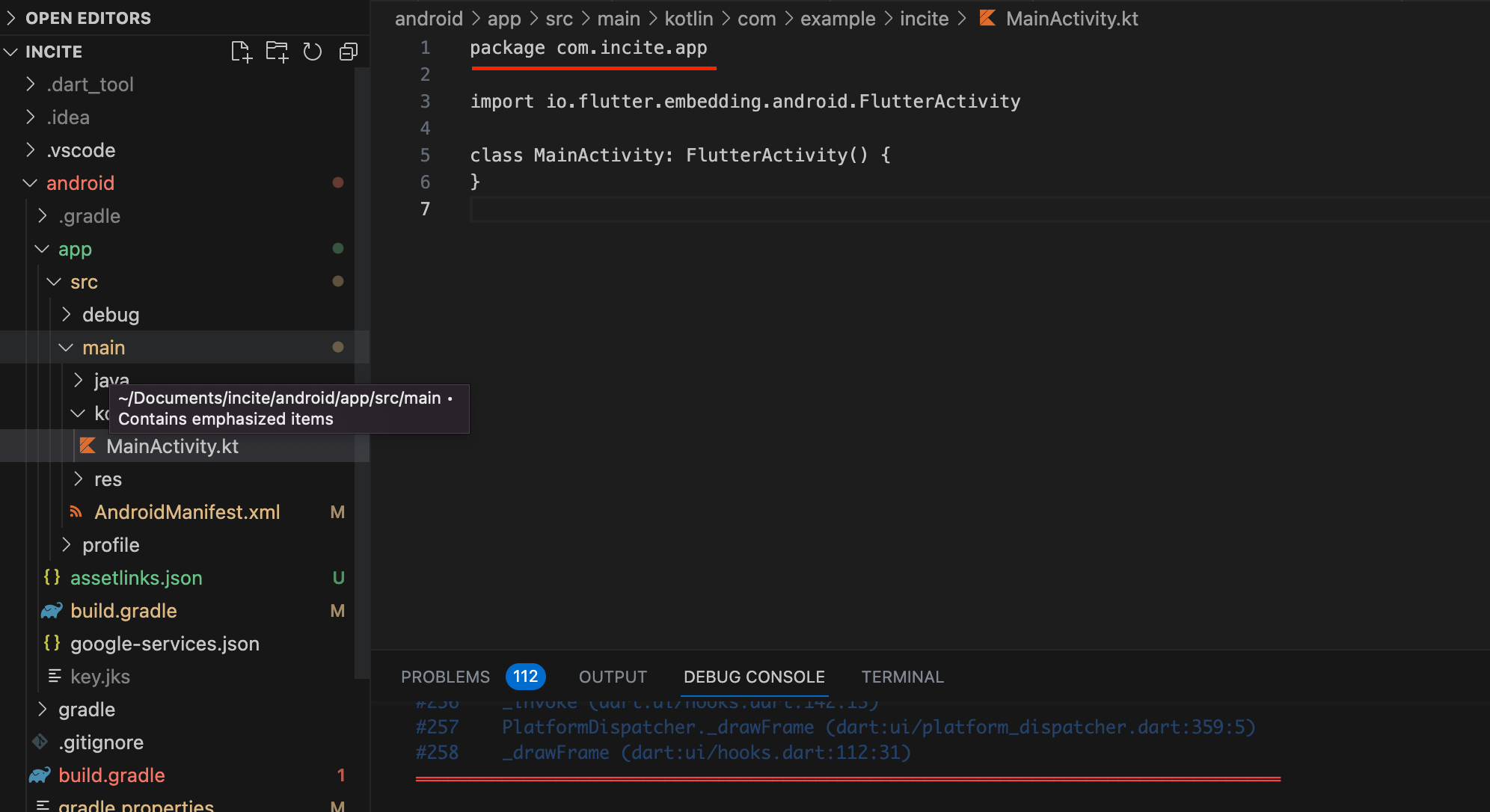
See attached screenshot below :
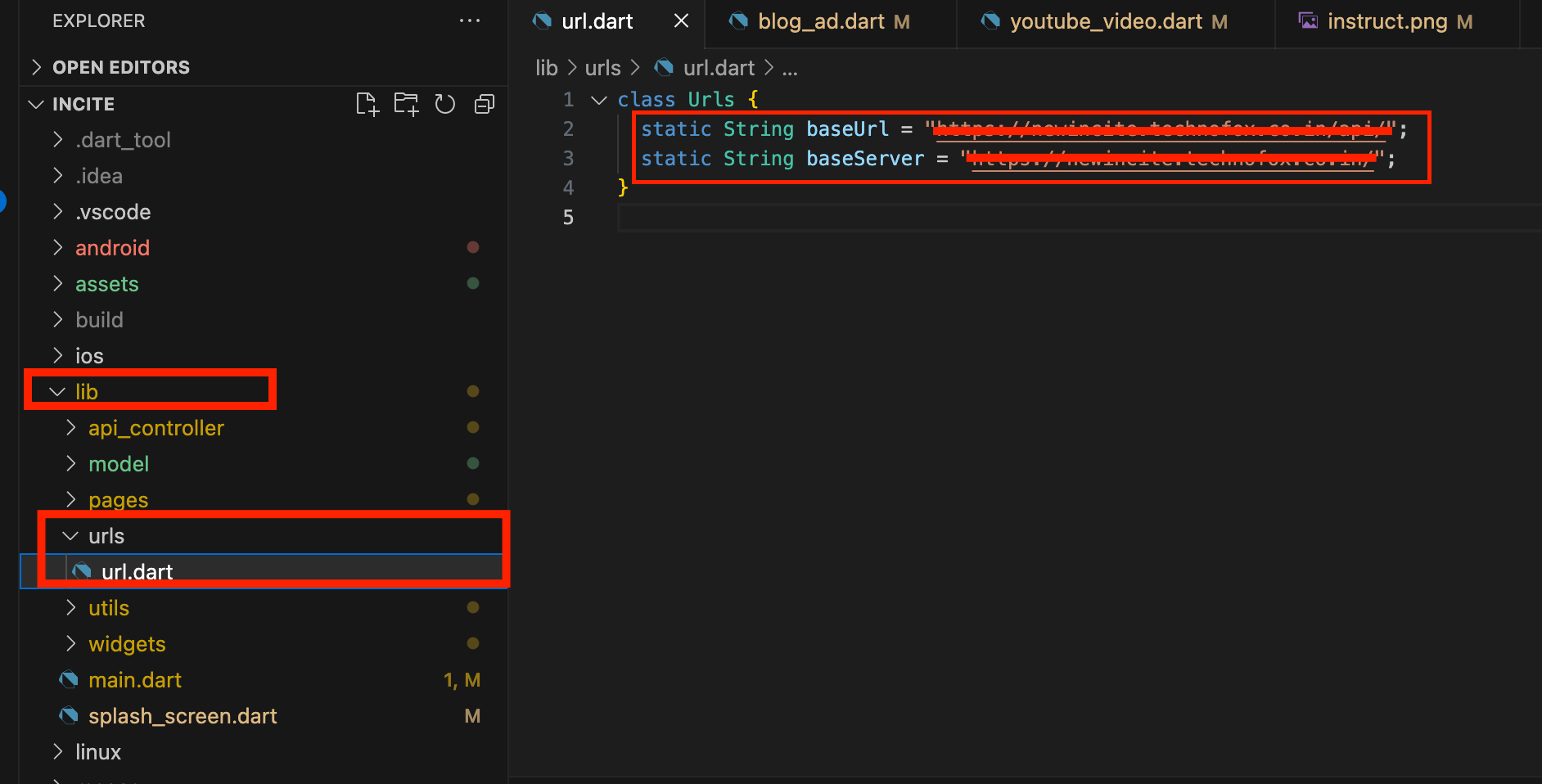
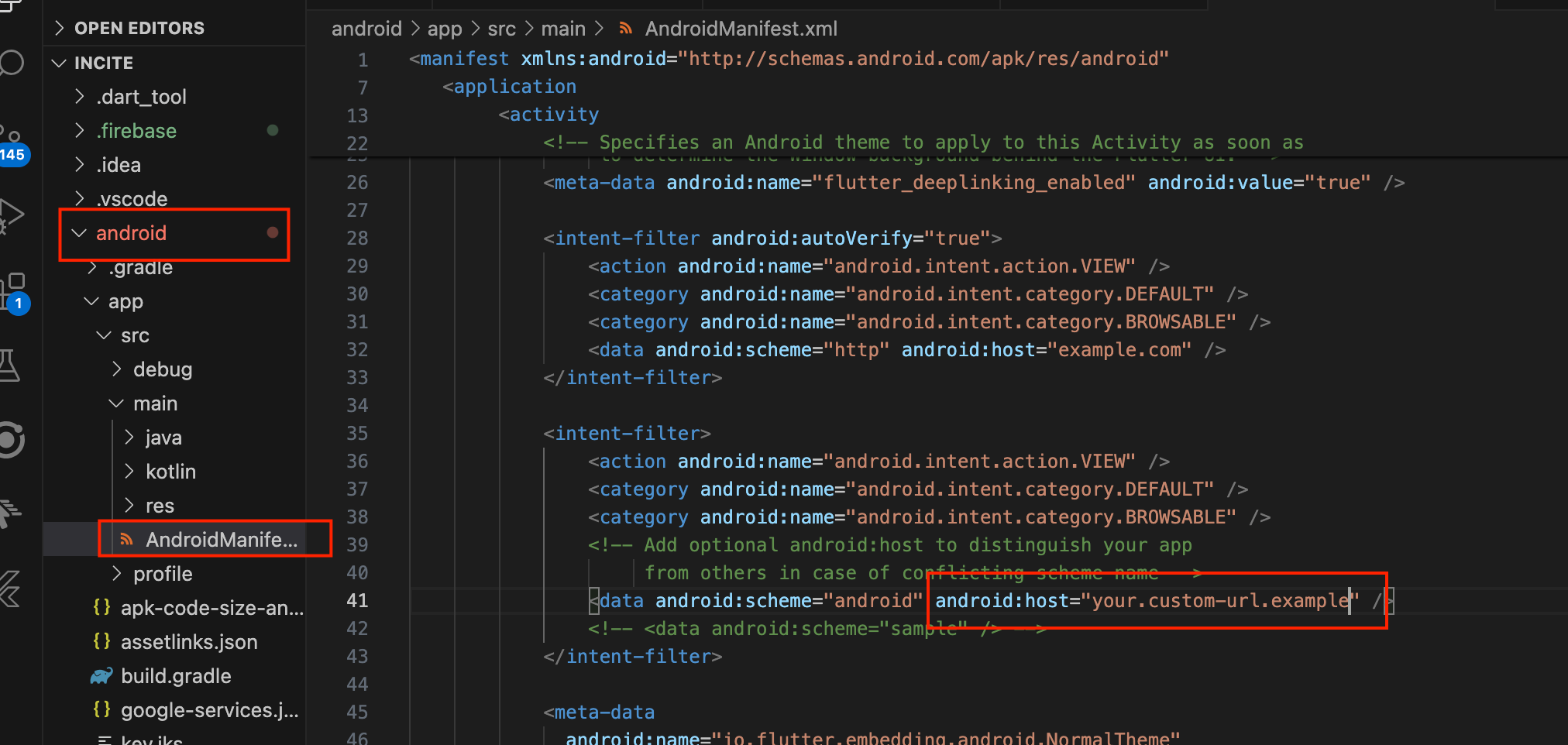
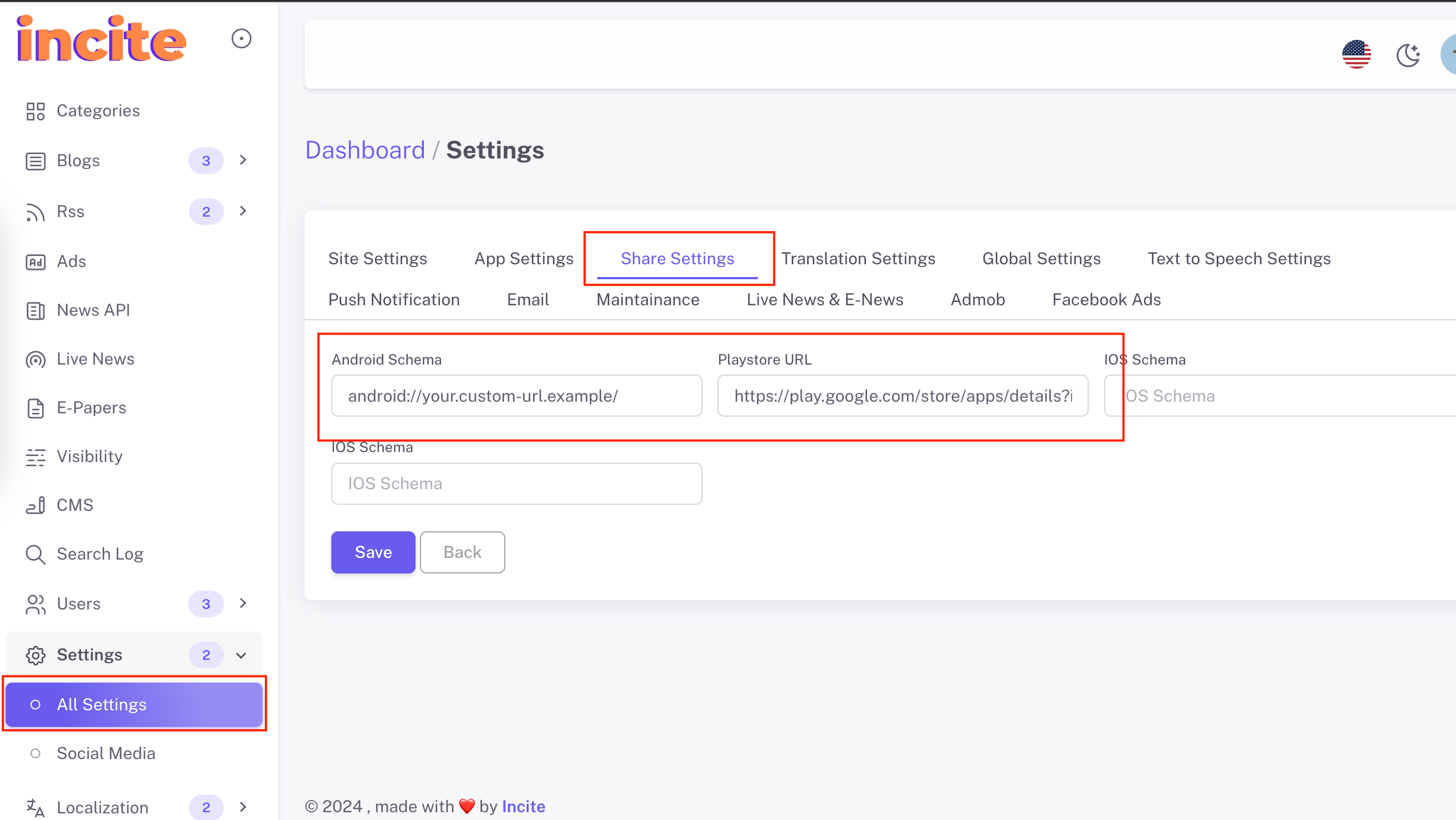
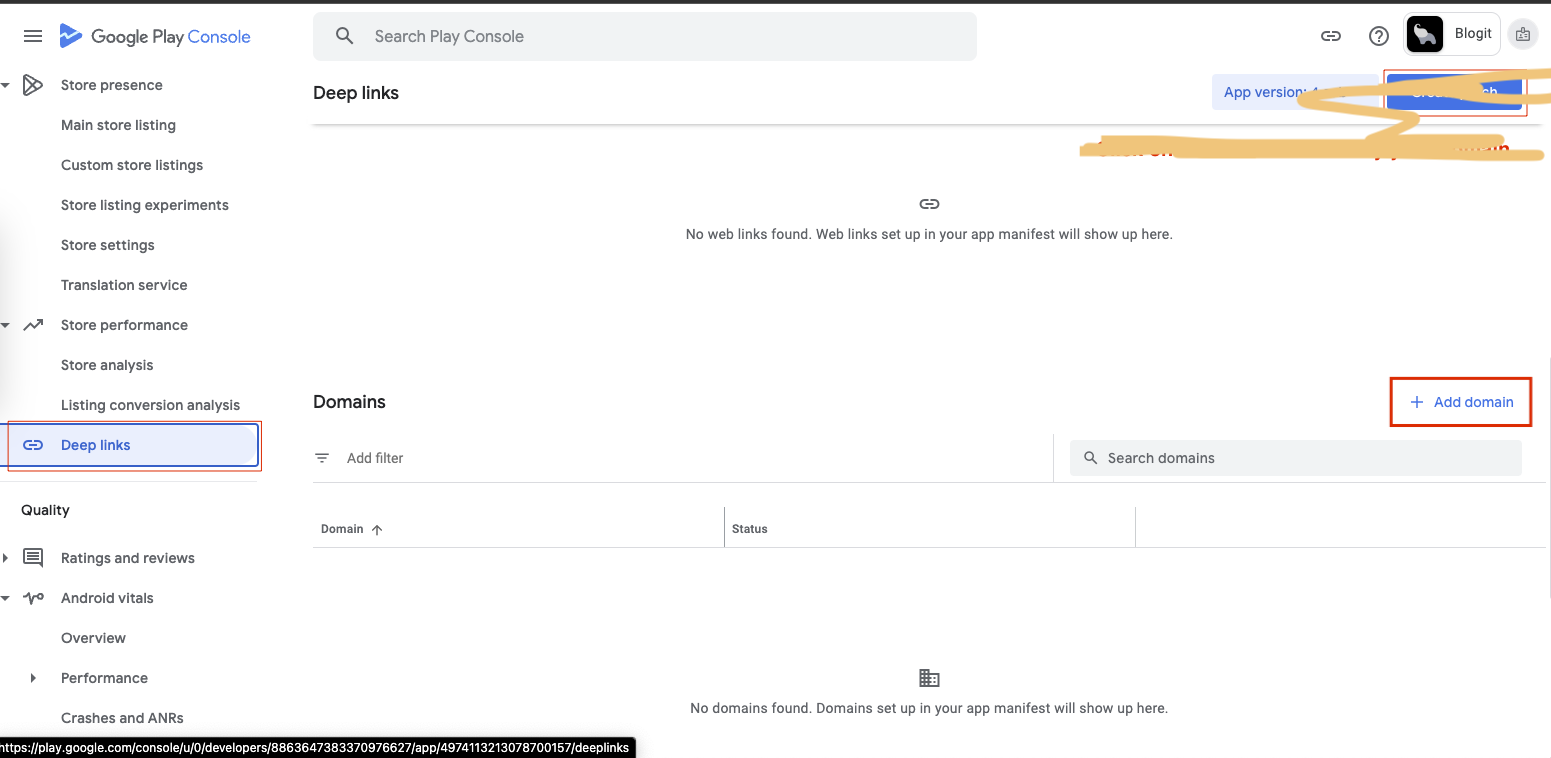
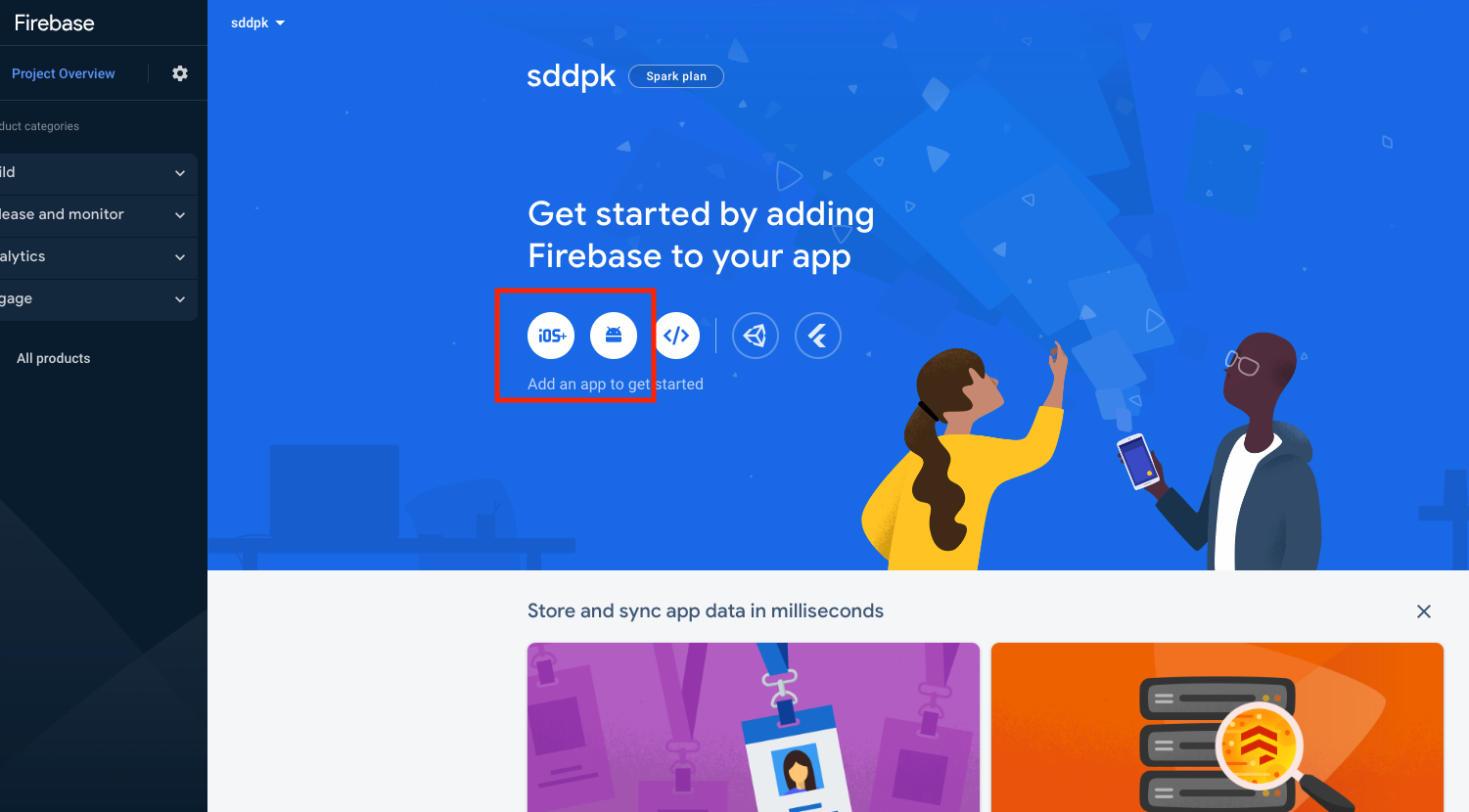
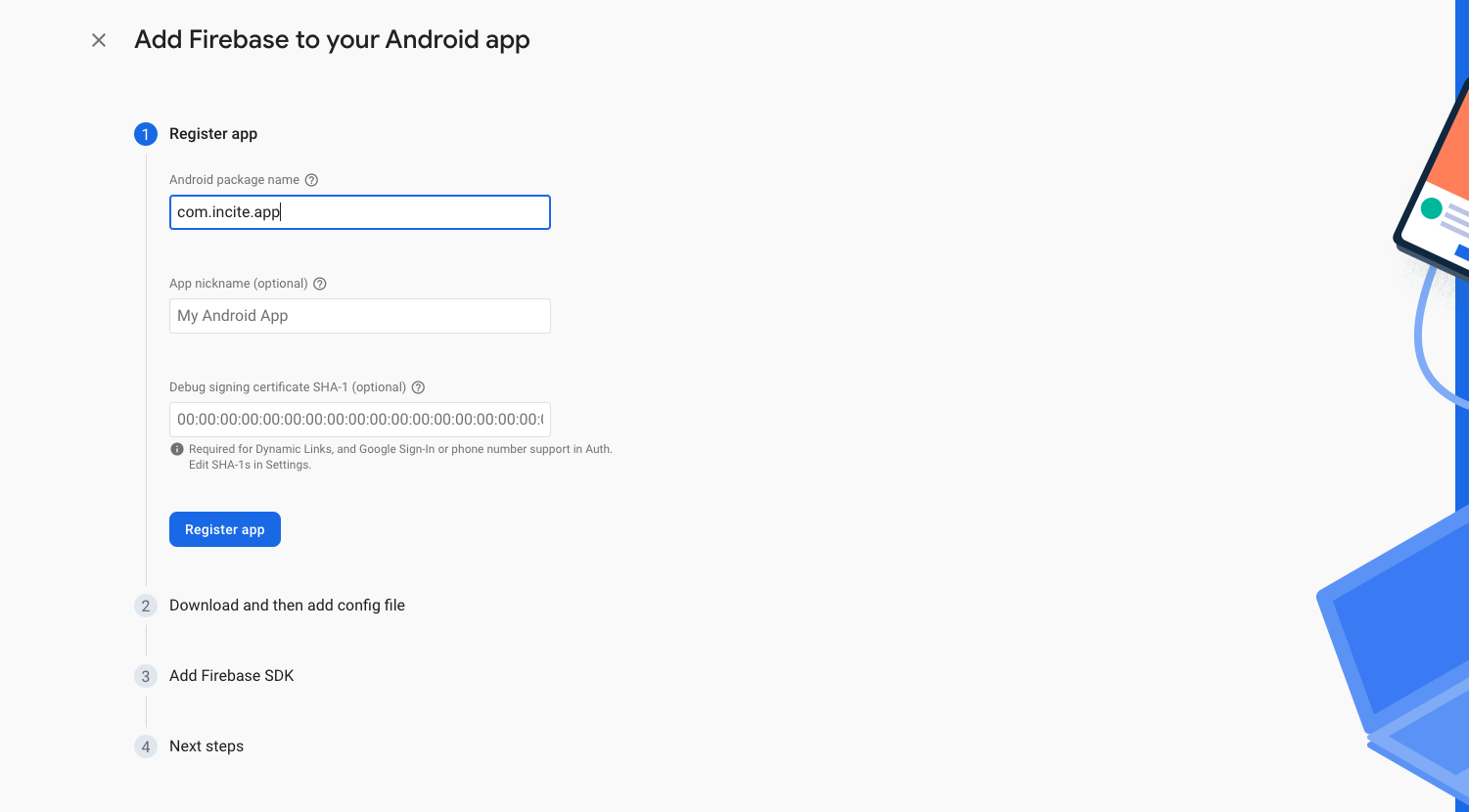
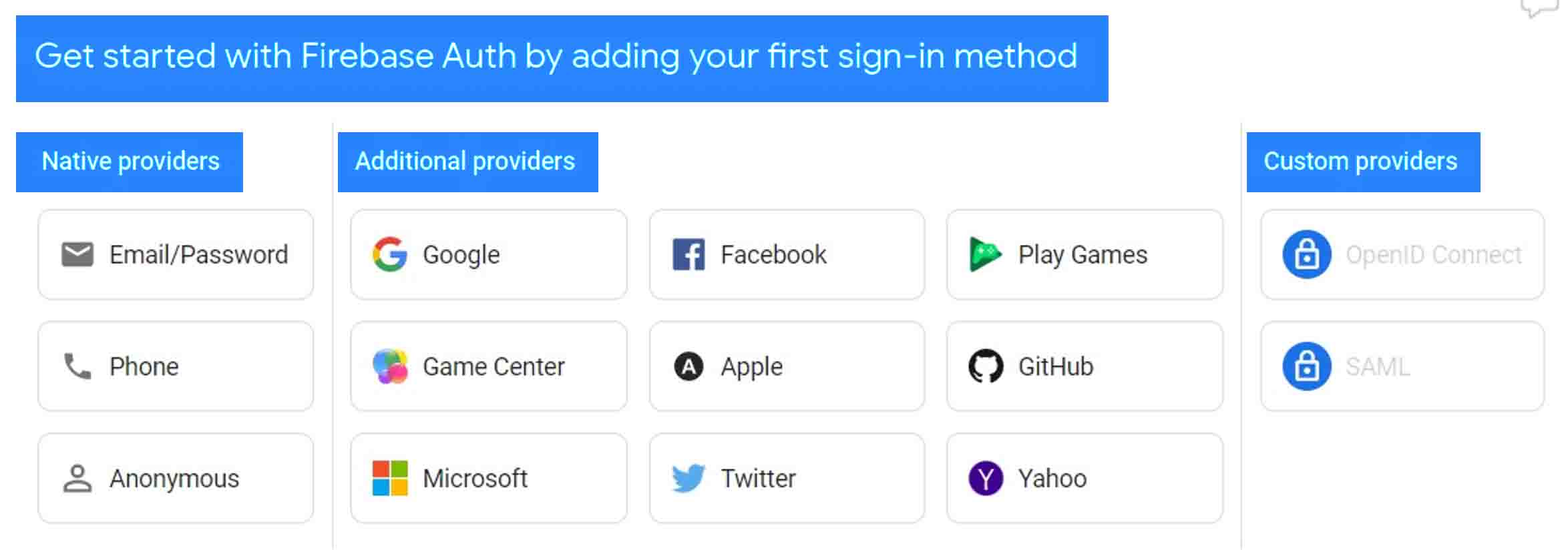
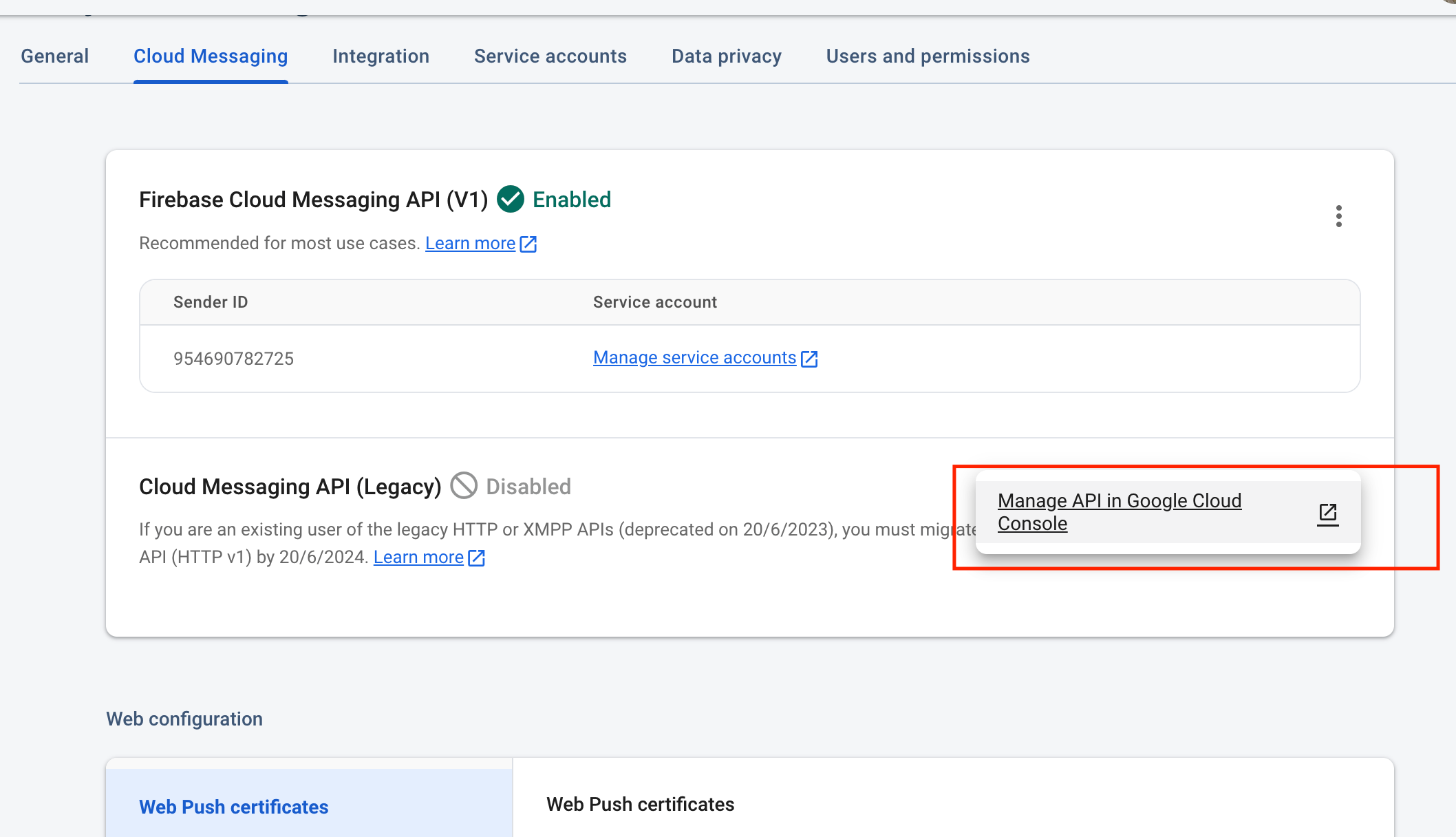
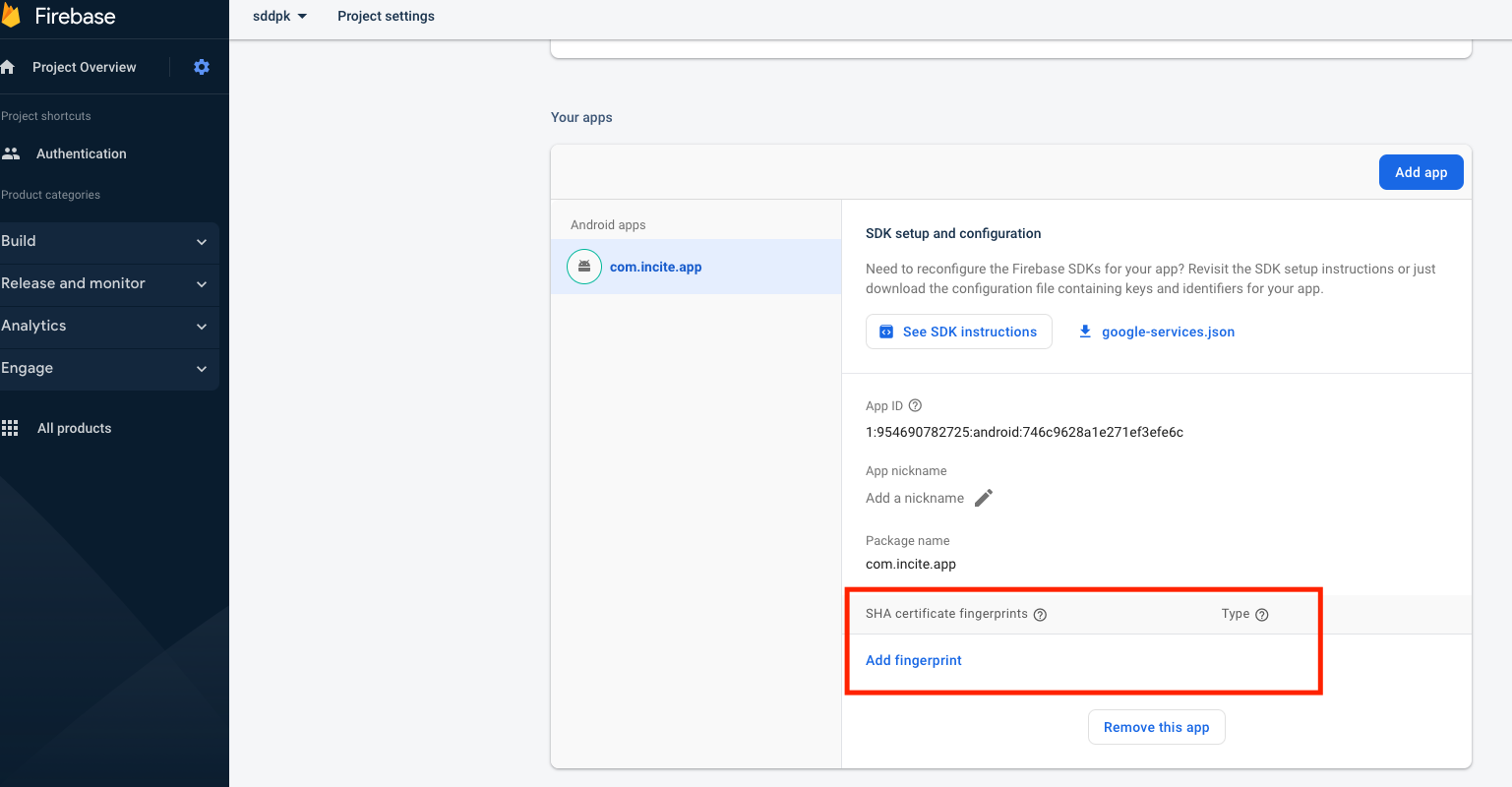
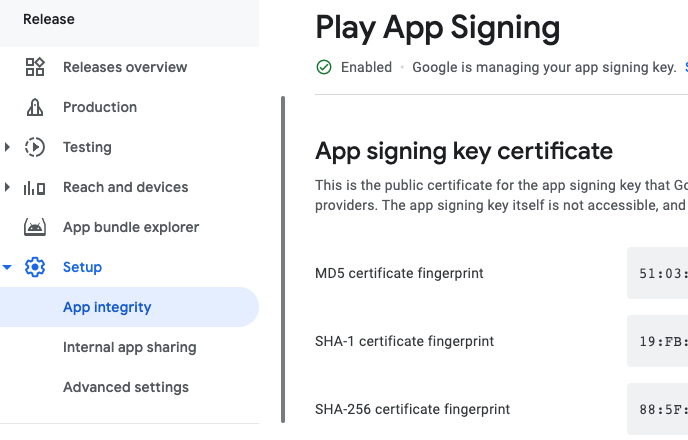
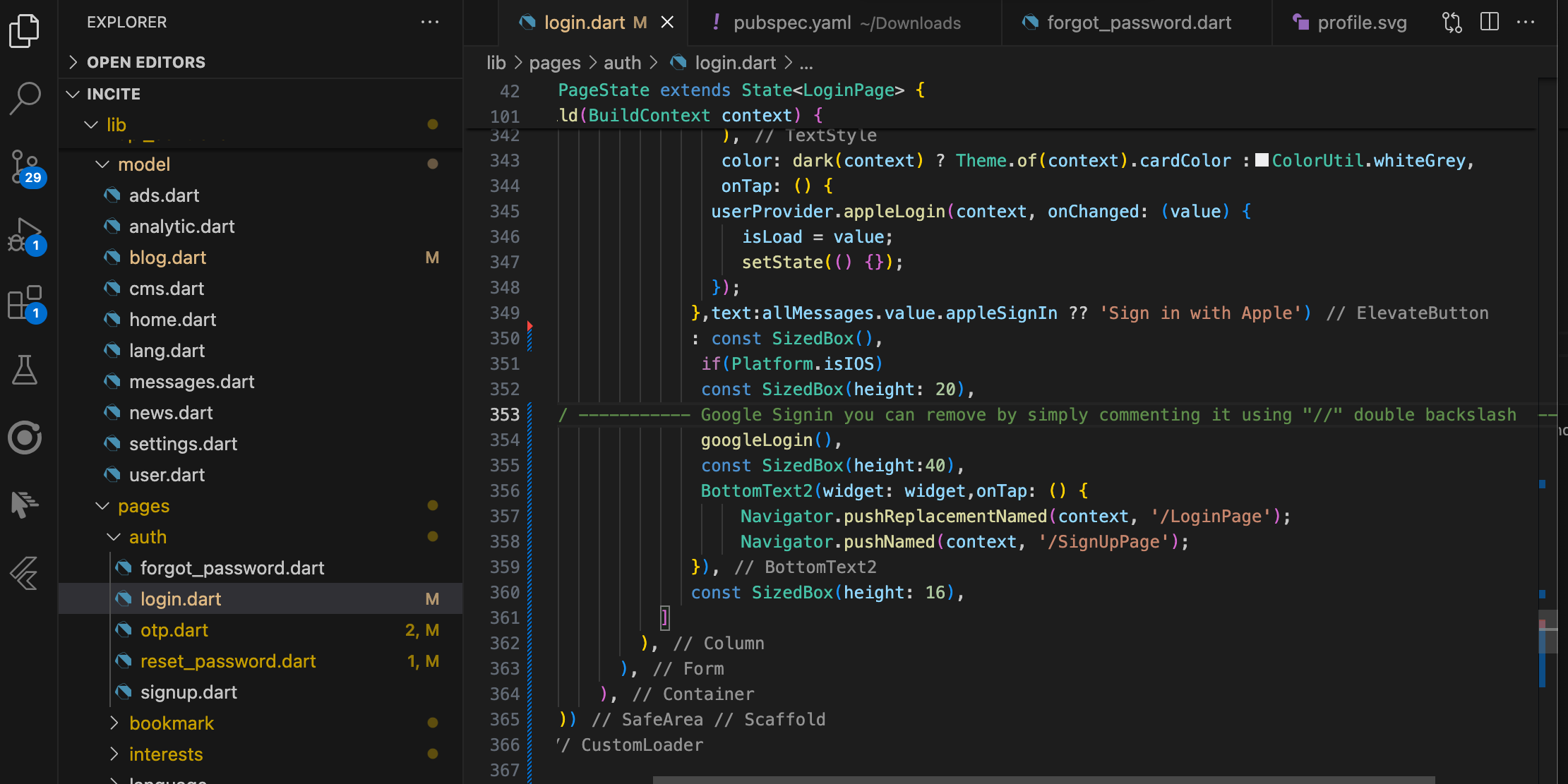
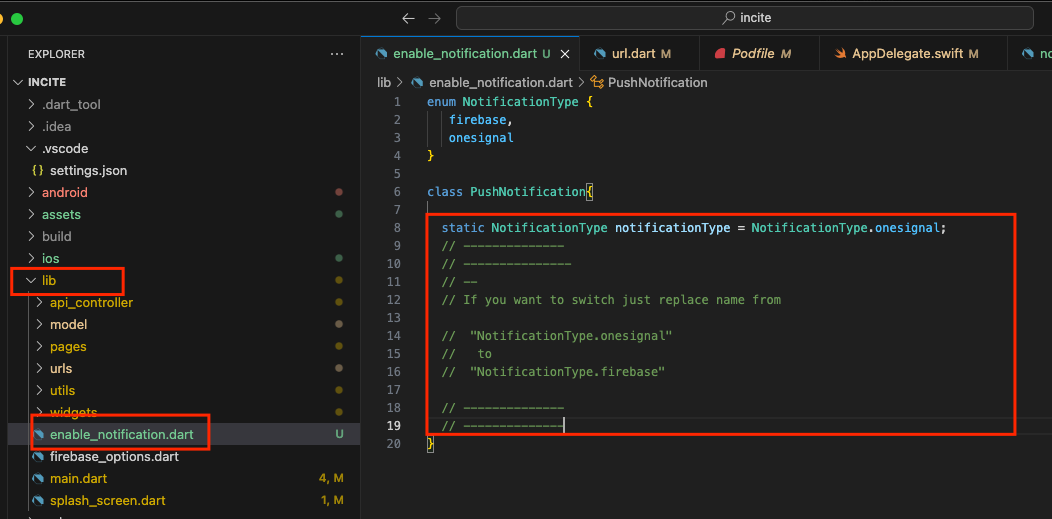
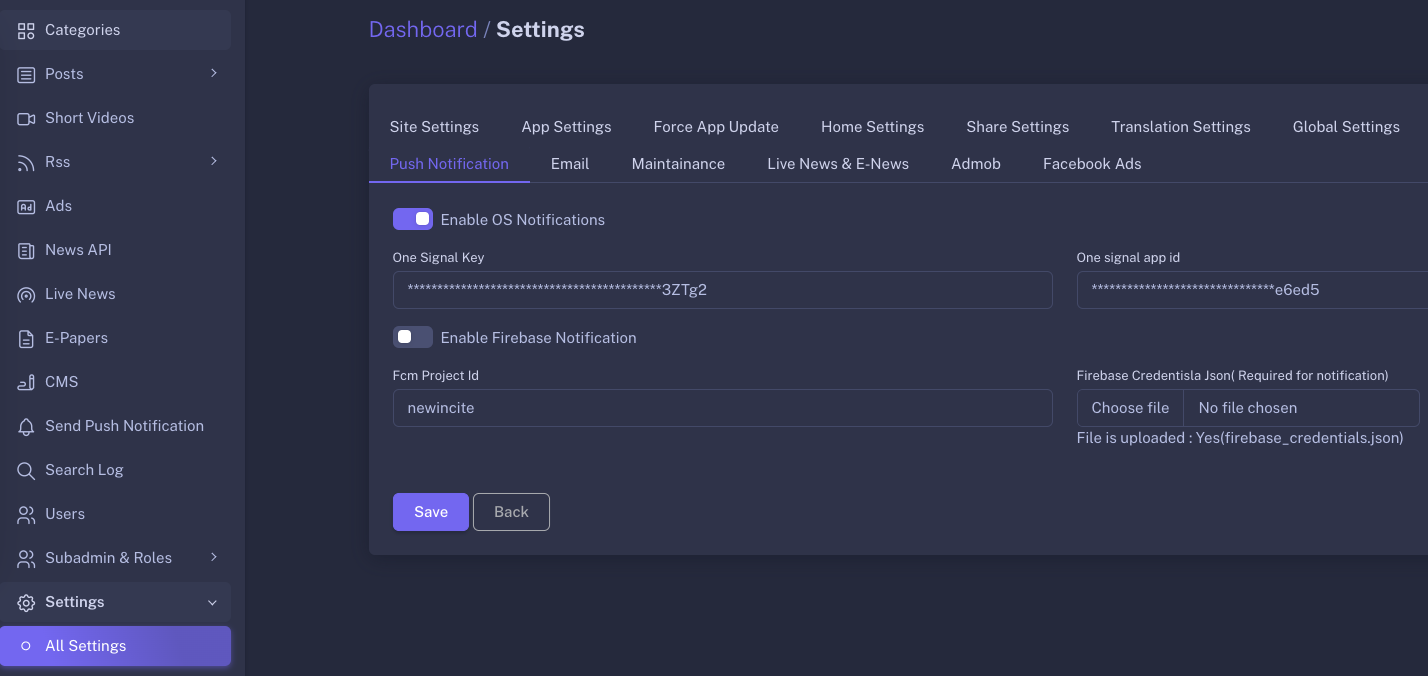
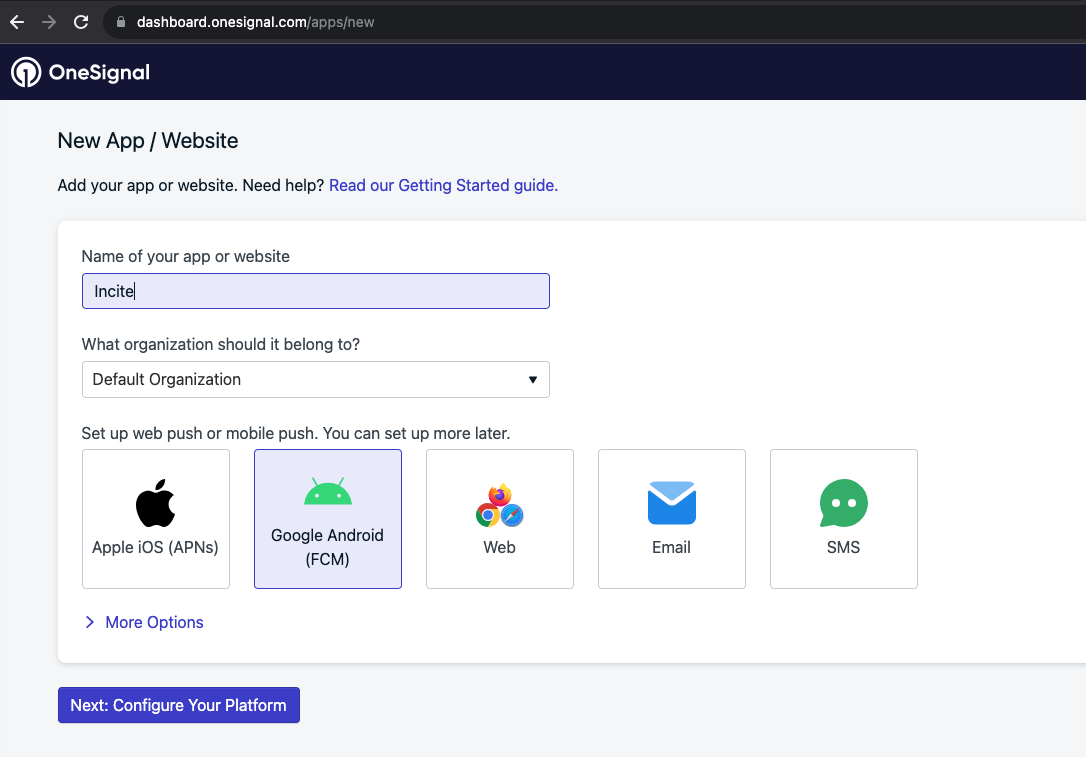
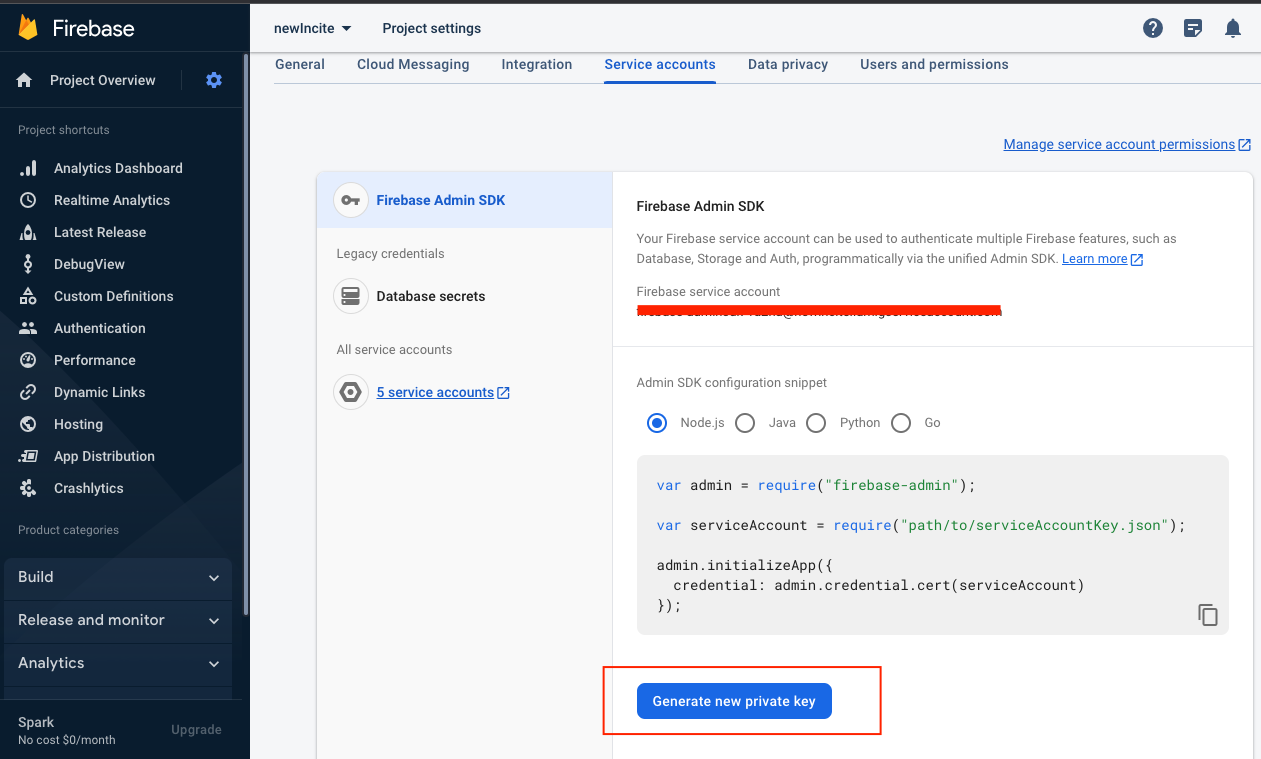
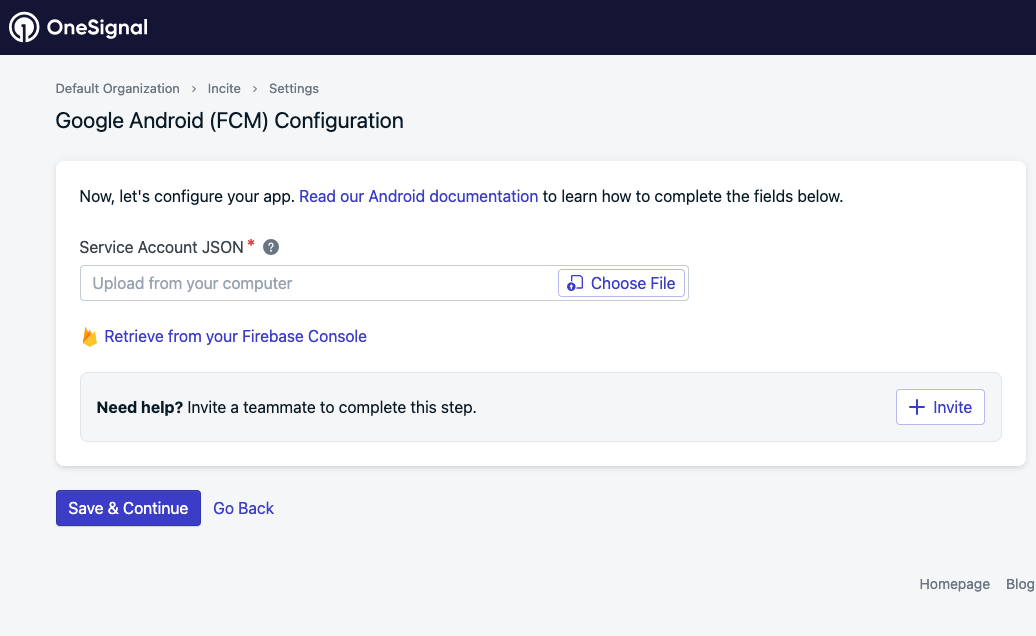
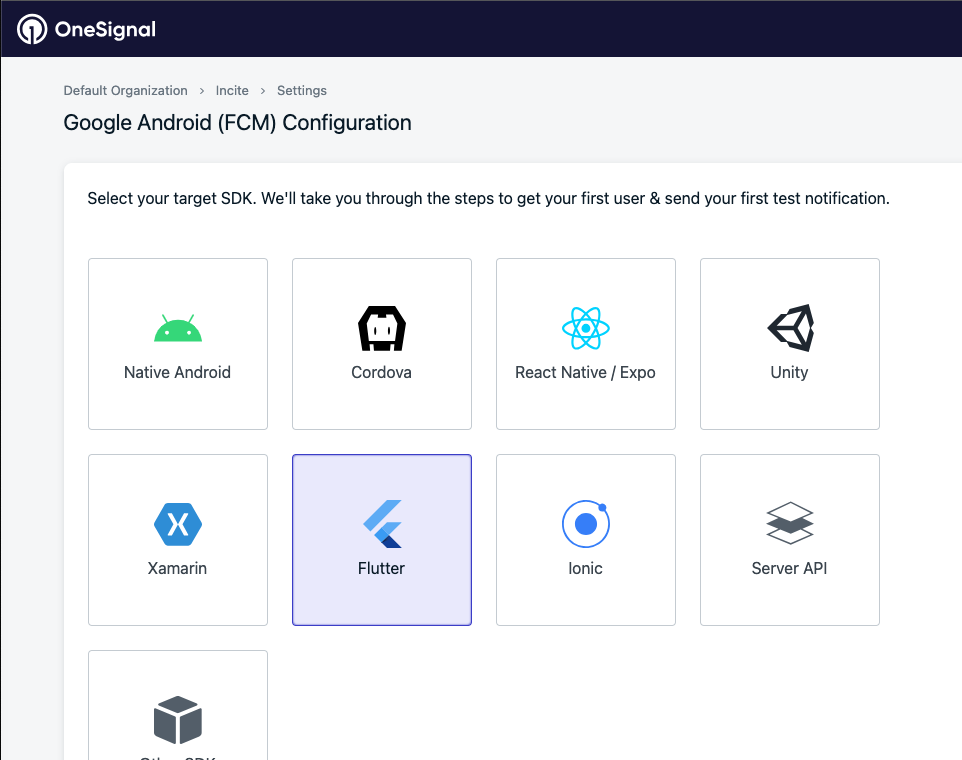
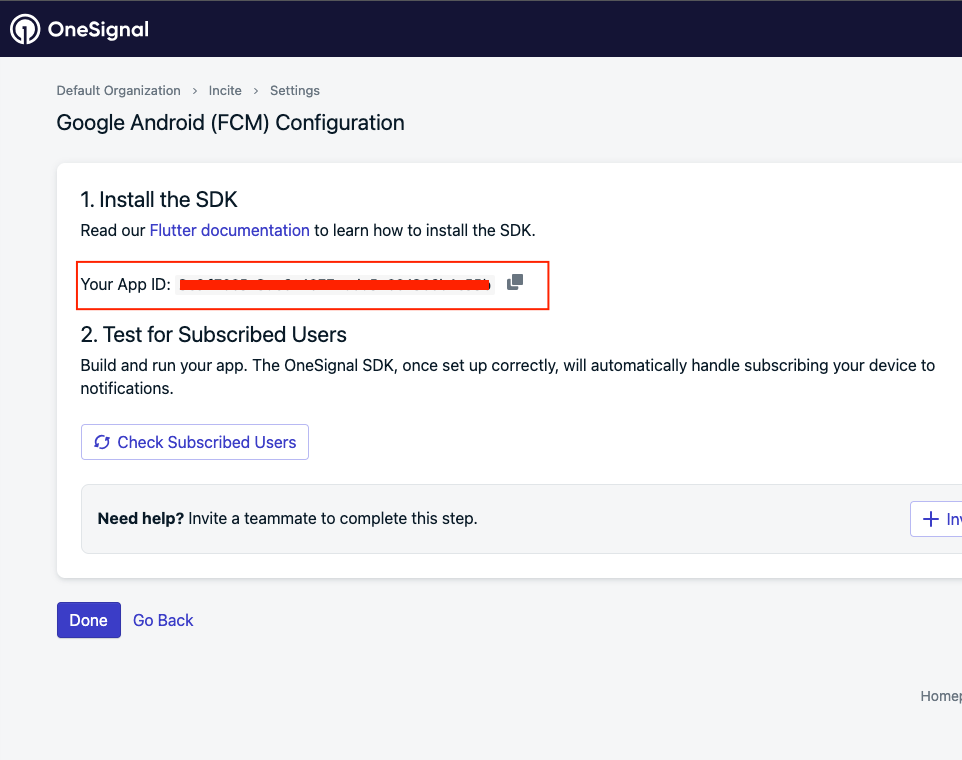
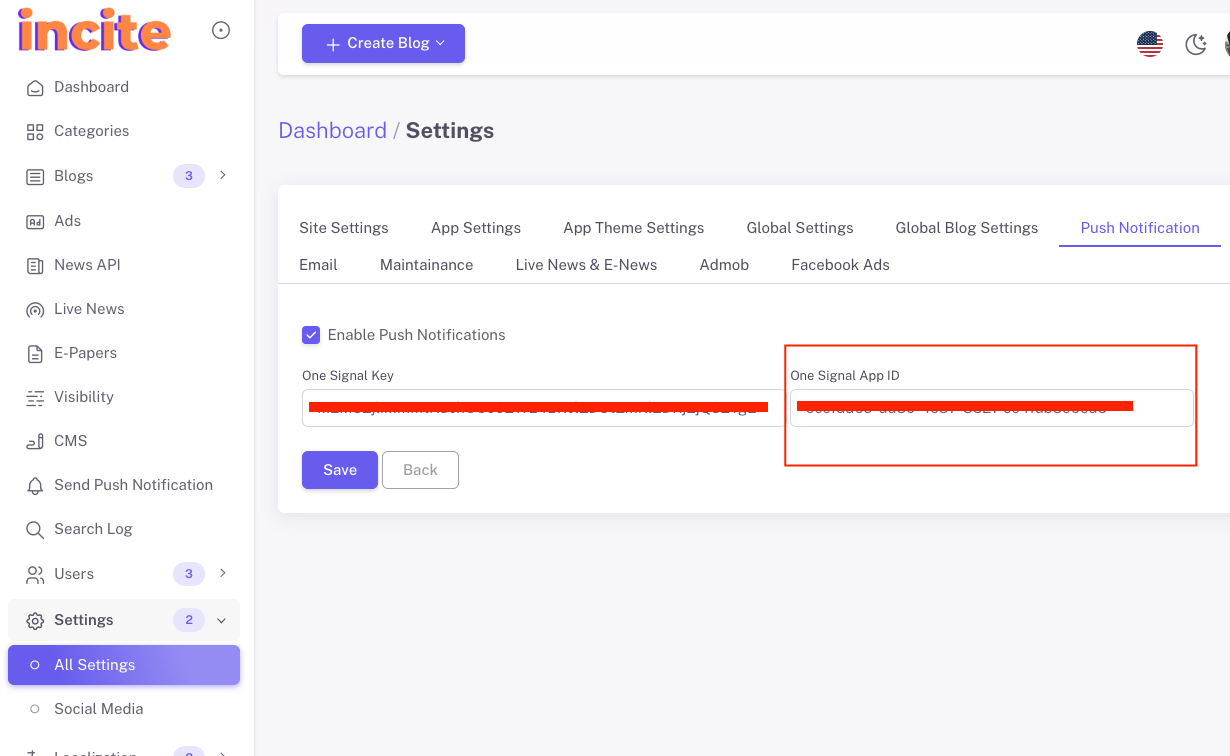
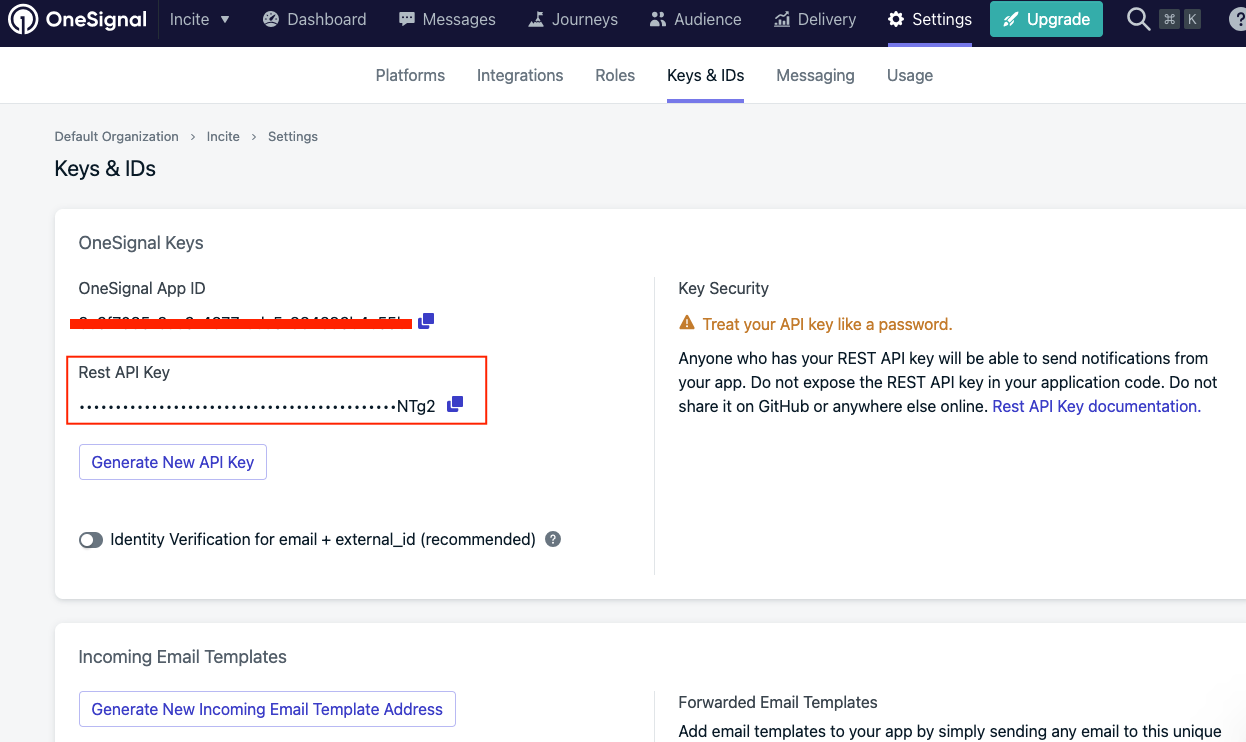
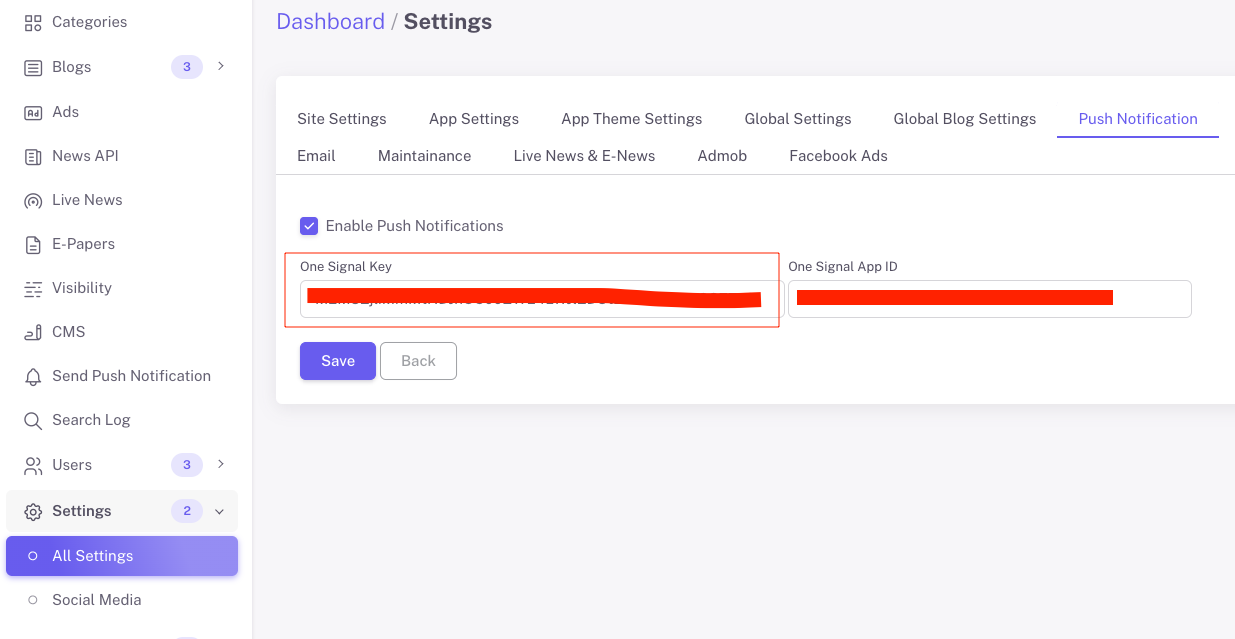
lib/main.dart and replace the OneSignal App Id given in the screenshot below : 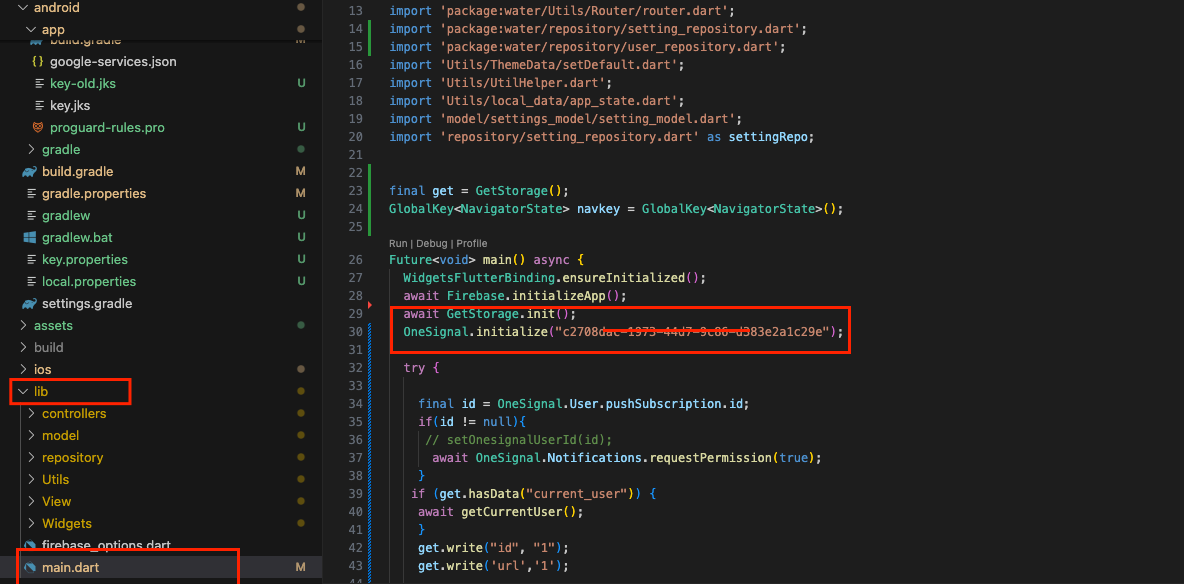
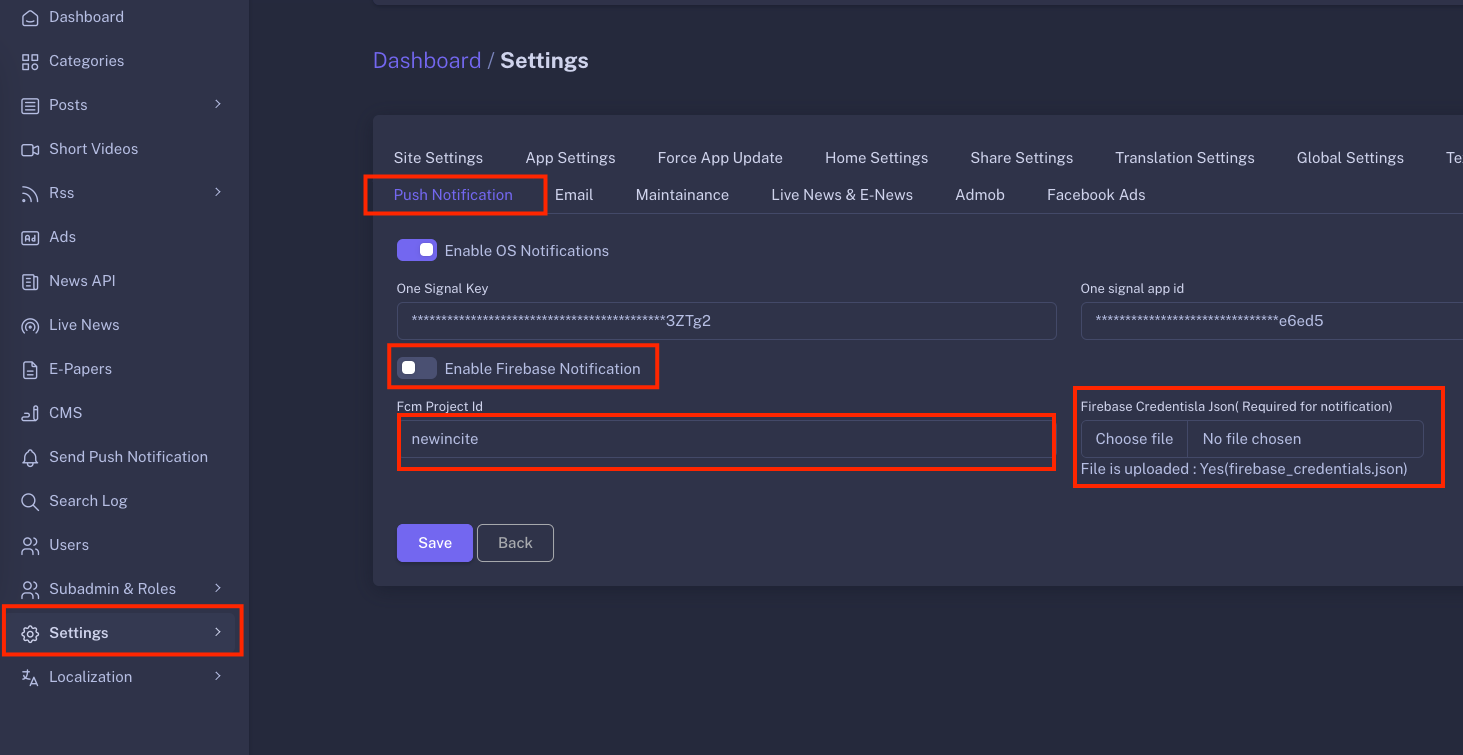
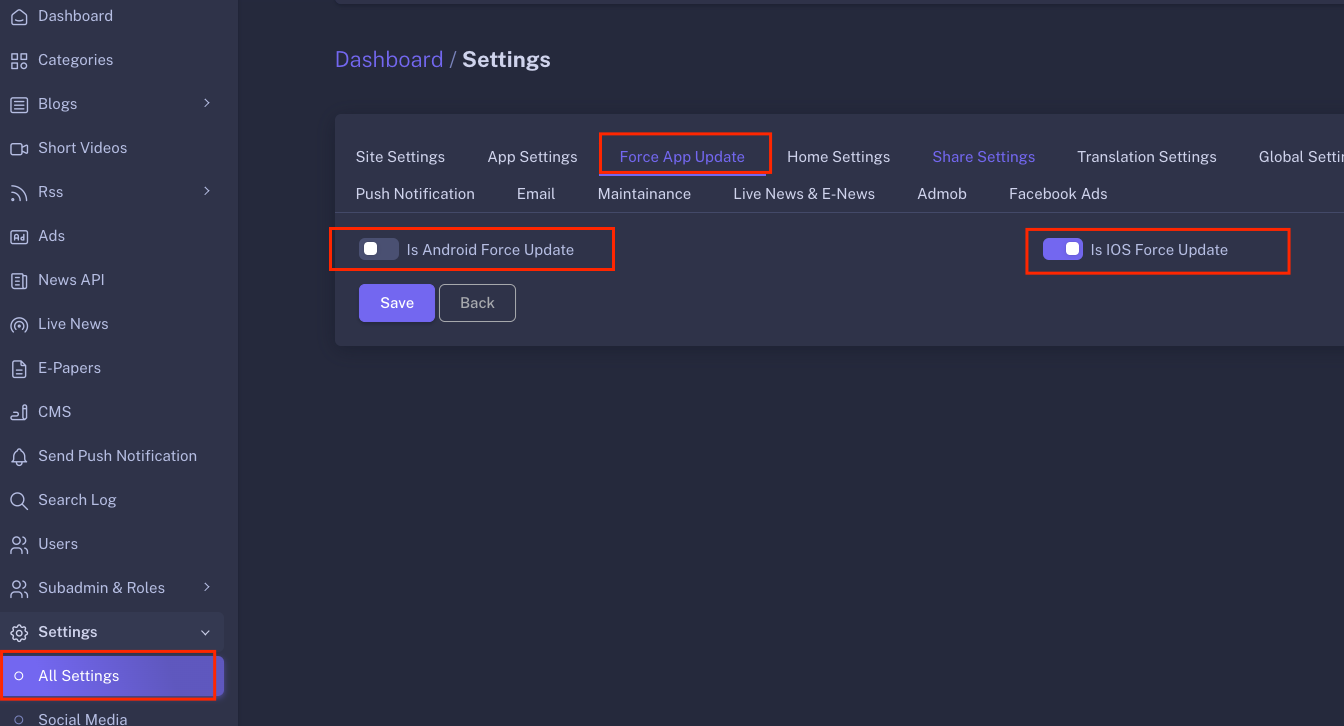
Choose the right advertising solution for your app
Google Ads helps you reach customers across Google's vast network, including search results, websites, and apps. With smart targeting and automated bidding, your ads appear to the right users at the right time.
Facebook Ads allow you to target specific audiences based on demographics, interests, and behaviors. With various ad formats, you can engage users across Facebook, Instagram, and Audience Network.


Unity Ads provides monetization solutions specifically designed for mobile games. With rewarded ads and seamless integration, you can earn revenue while enhancing player experience.

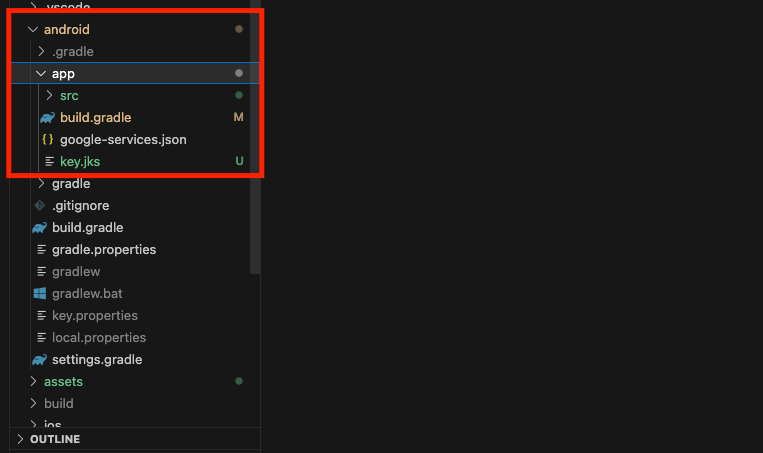
key.jks given in the project given at android/app/key.jks. It
is just a dummy key for explanation.key.jks file under android/app/key.jks to avoid
errors in the project setup.key.jks).
Make sure to choose a strong and secure password and remember it because you'll need it for future app
updates and releases.When you run the keytool command to generate the key, it will prompt you to enter these details
interactively. Once you've provided all the necessary information, the key.jks file will be
generated with the specified alias and stored in the directory you've chosen. Make sure to keep the keystore
file and the passwords secure, as they are crucial for signing and updating your app.
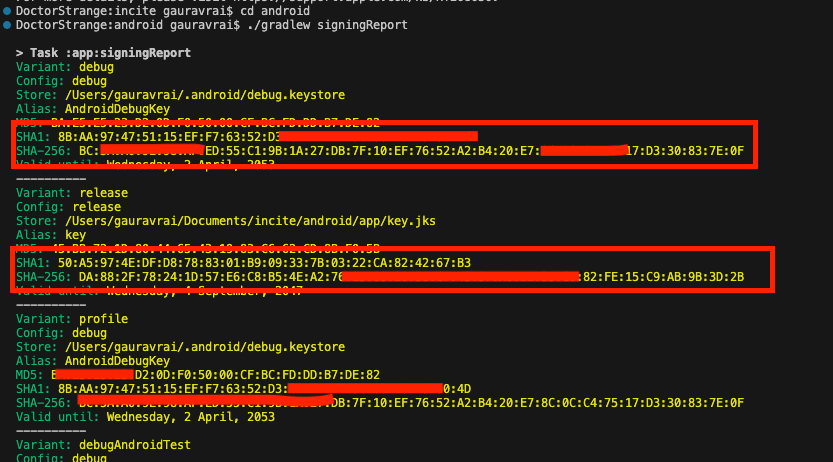
Key.jks file creation, Add 'storePassword' & keyPassword in
your key.properties file under android folder of your project.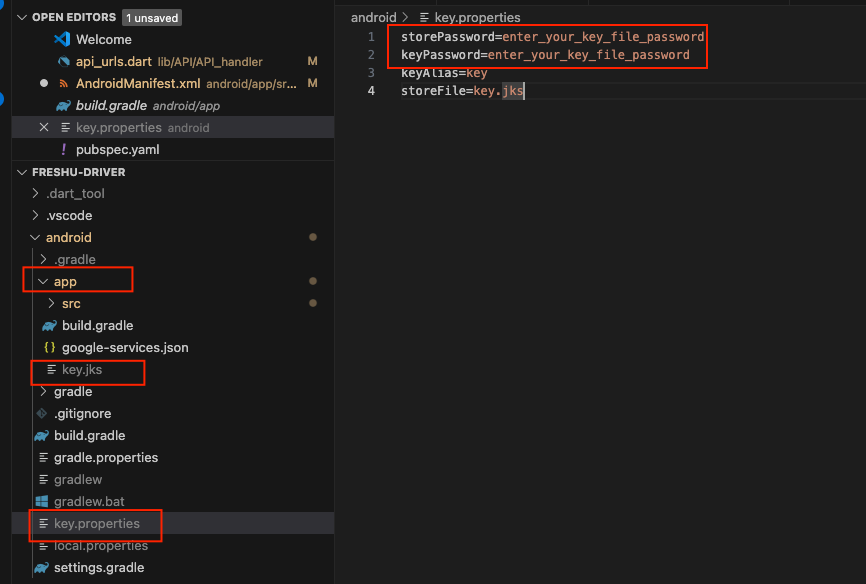
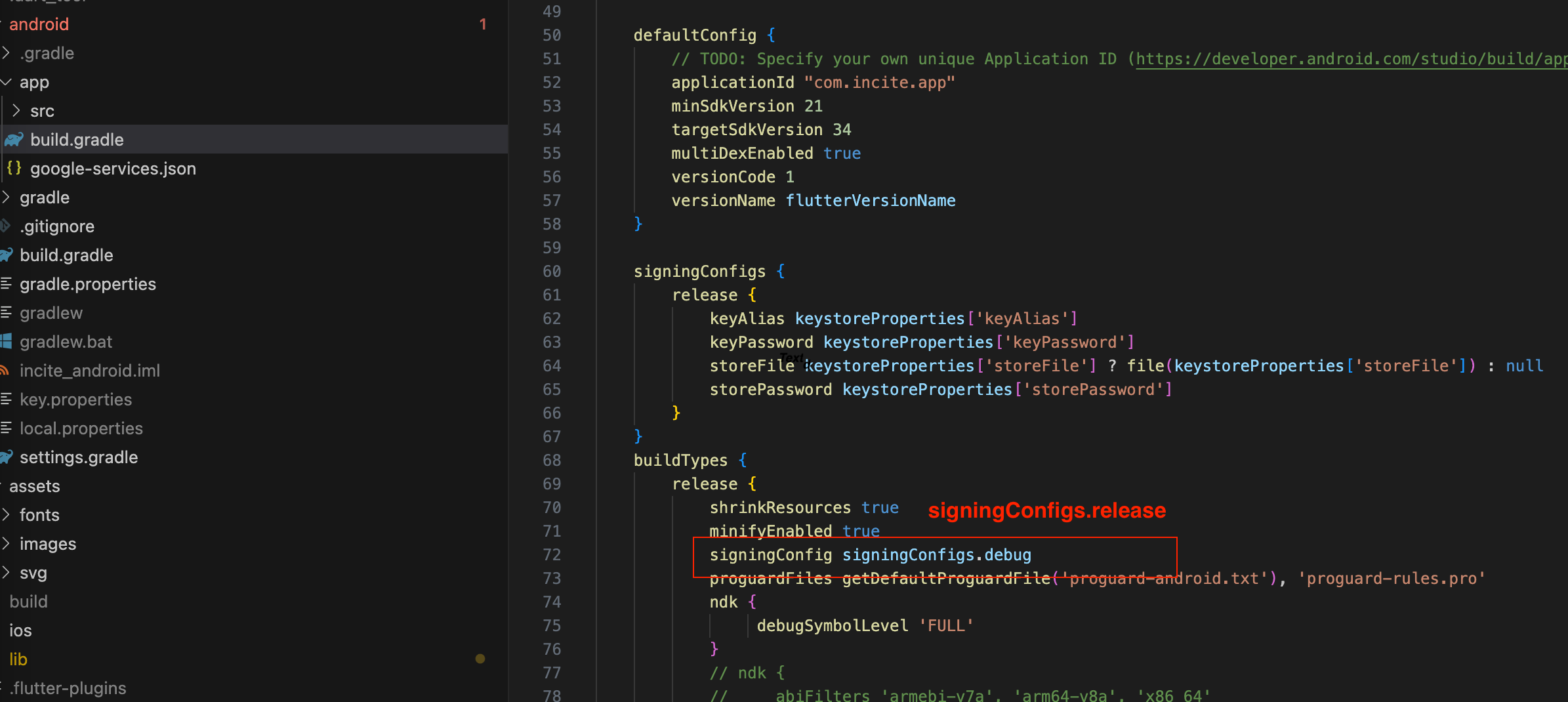
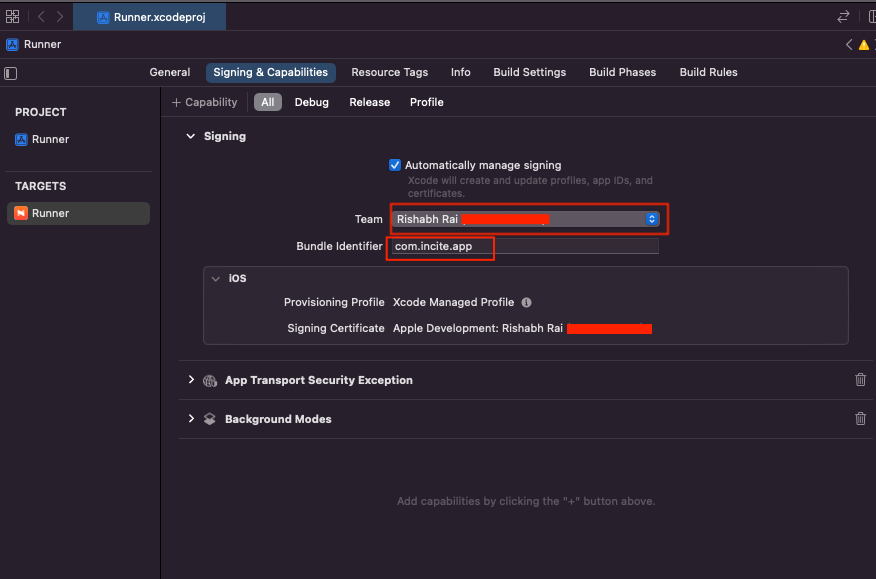

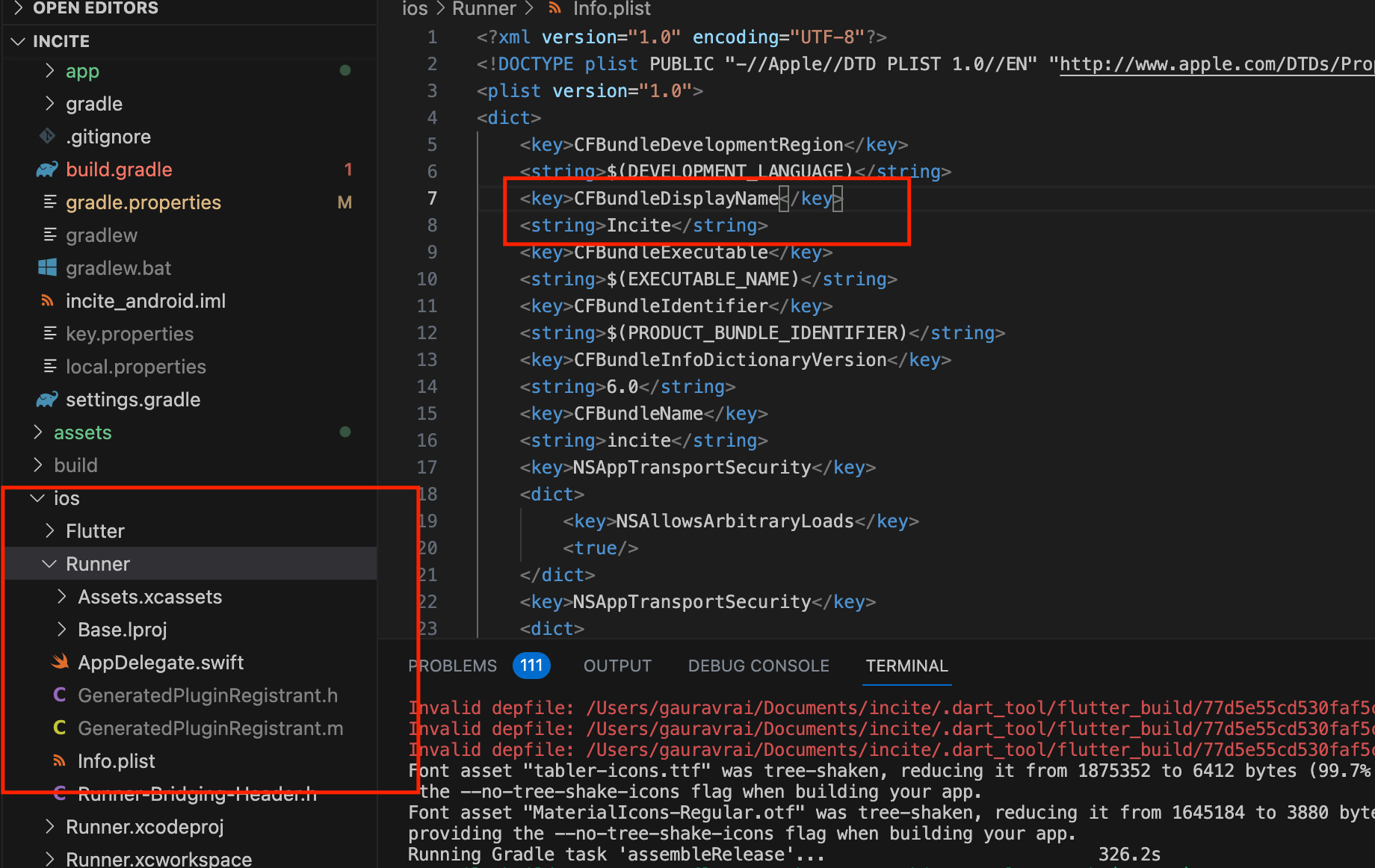
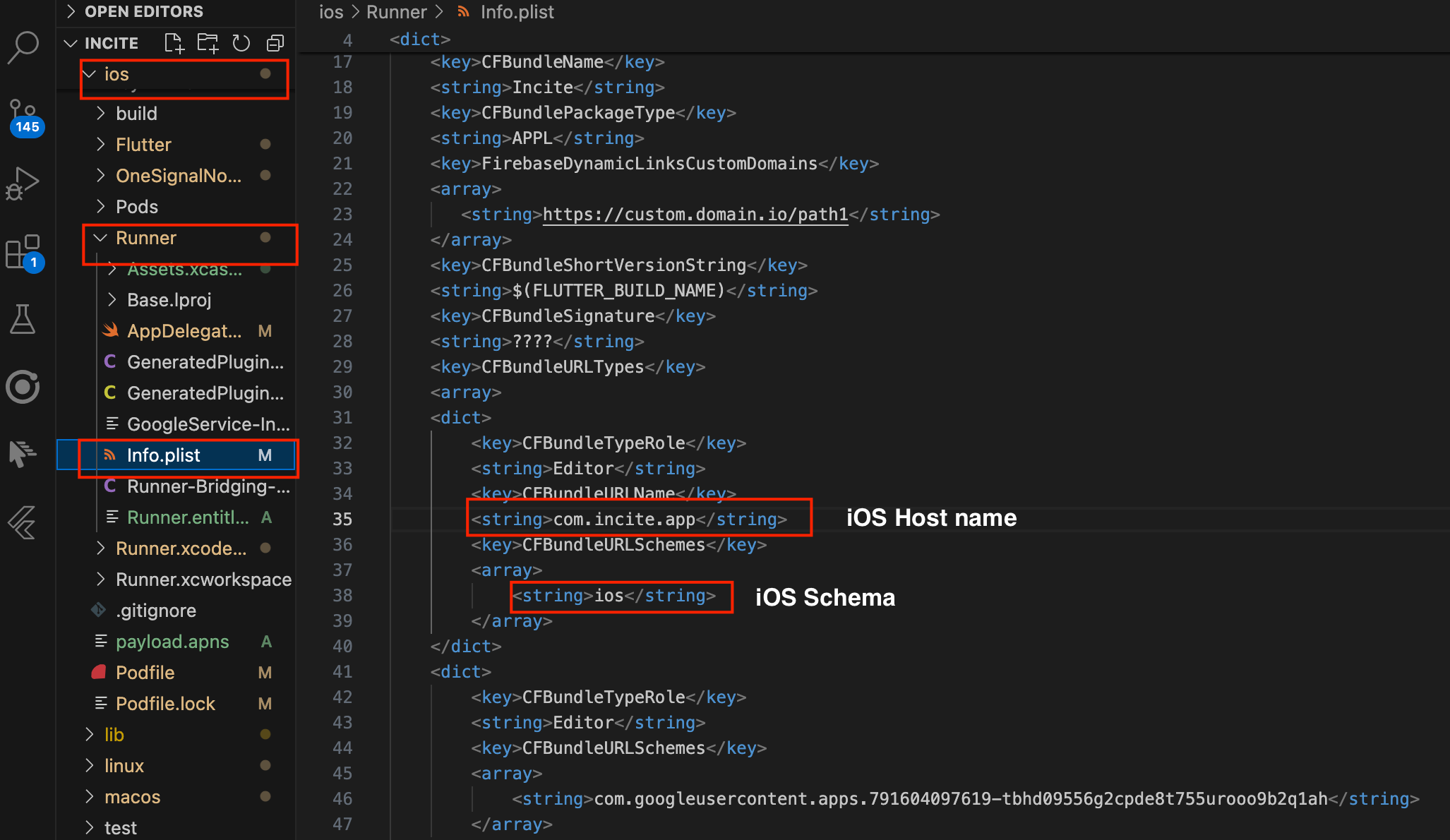
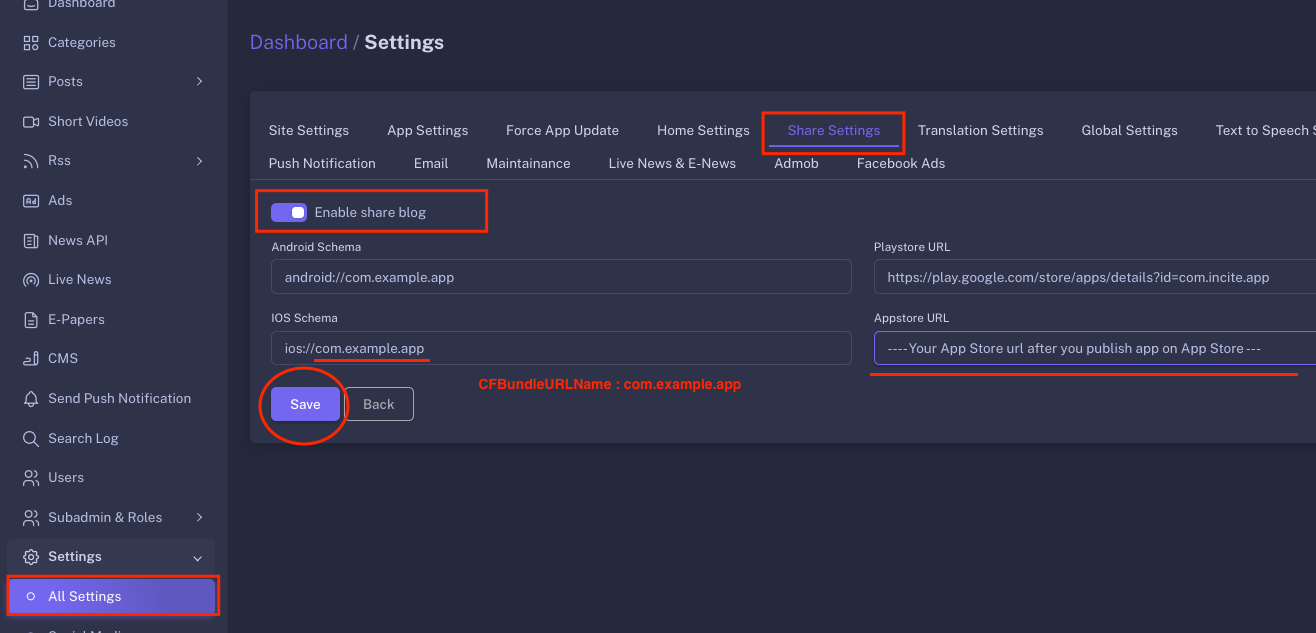
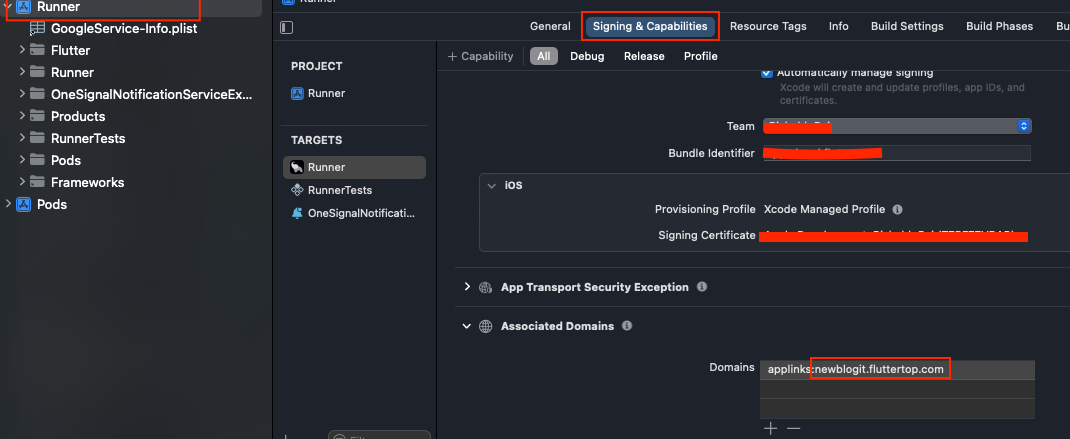
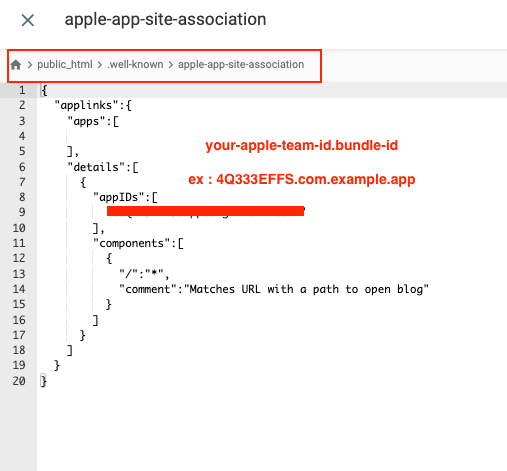
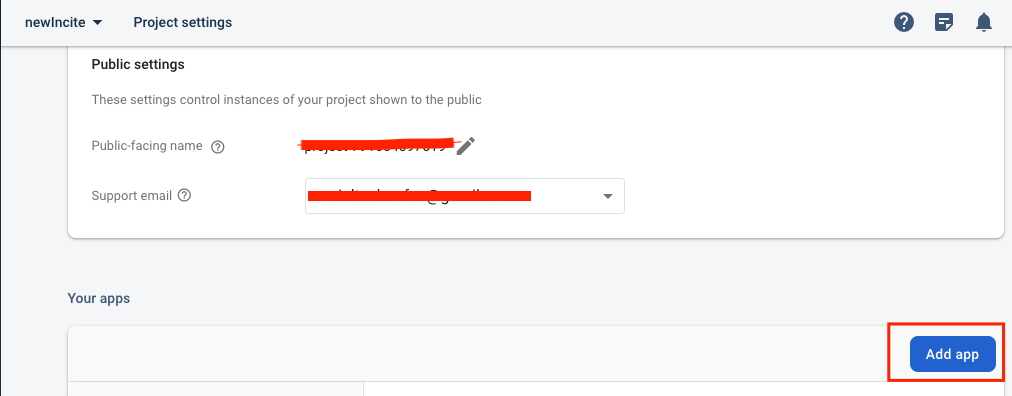
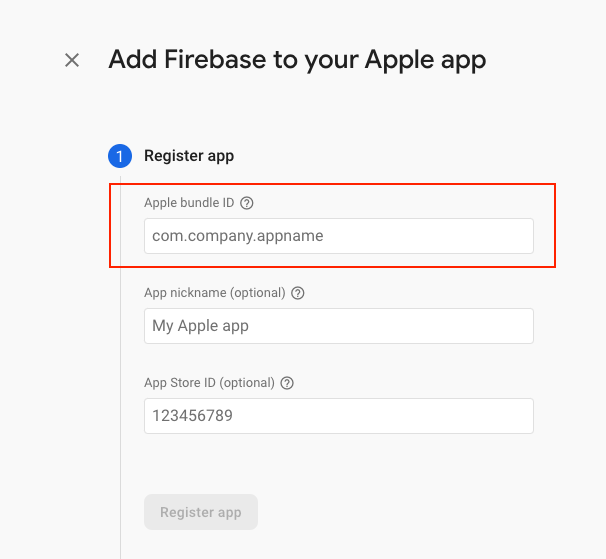
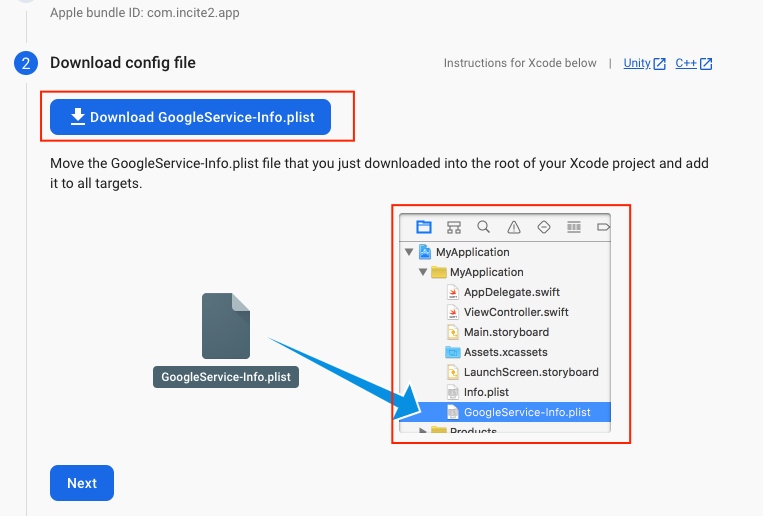
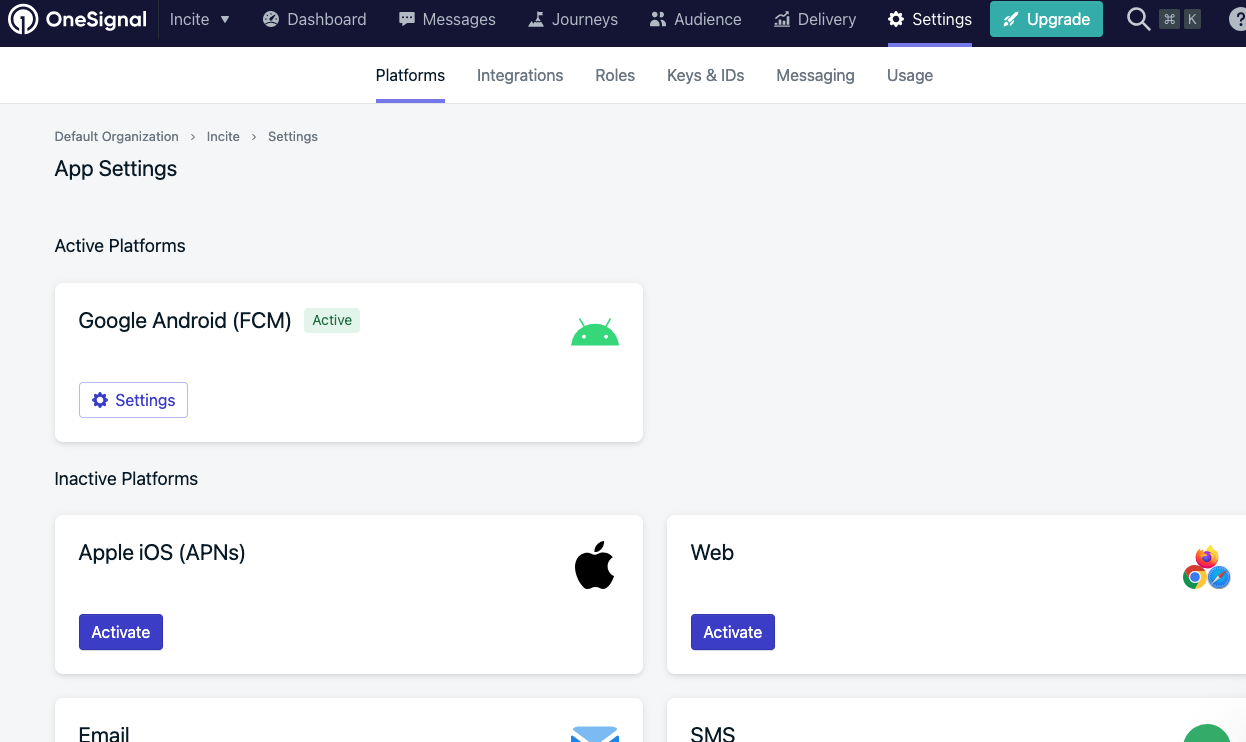
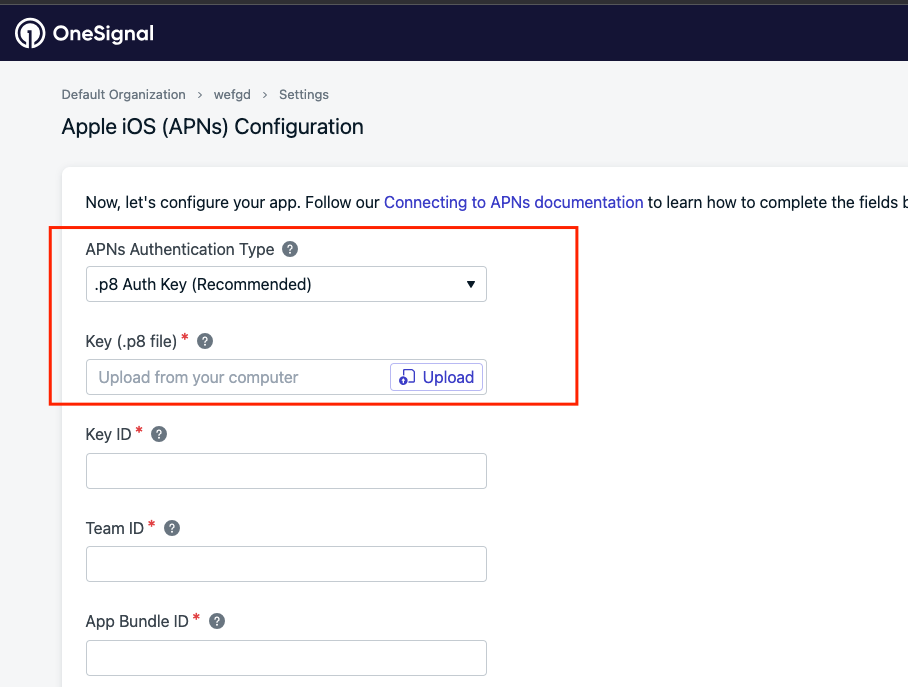
Please remember while replacing this folder : If you have made customisations by yourself then we don't recommend this process.
See attached screenshot below :
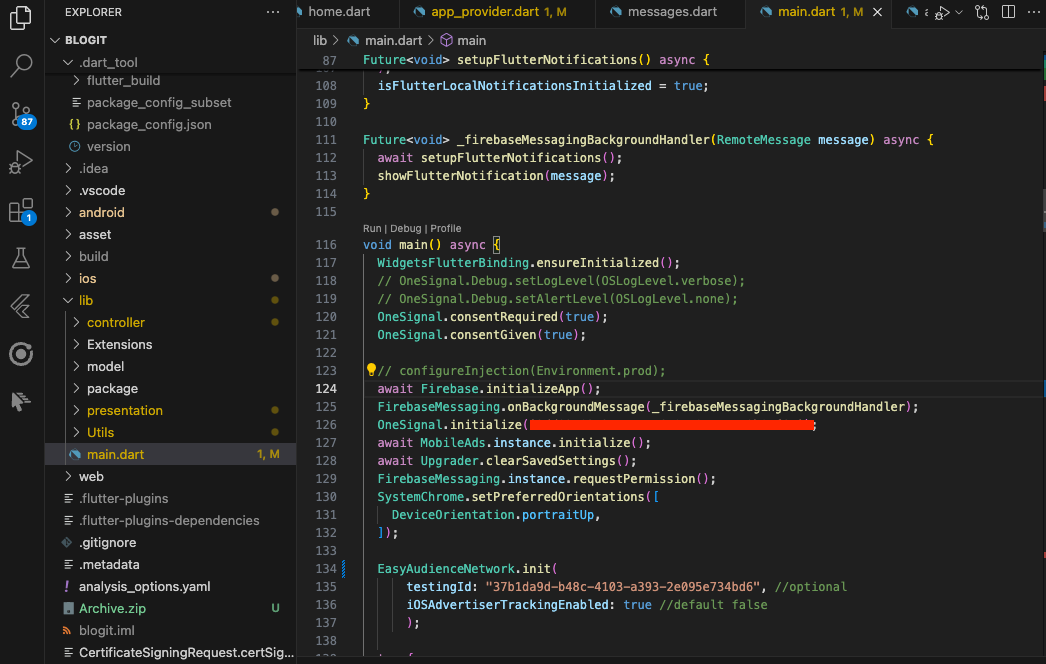
After replacing app/build.gradle file, do not forget to update the "bundle-id" of your project inside the file.